Cargo Build Action
The Cargo Build action compiles a Rust project and its dependencies using cargo build.
The Cargo Build action in Continua is a wrapper around the Cargo command line. If you're having trouble using the Cargo Build action, please refer to the Cargo Documentation.
Cargo Build
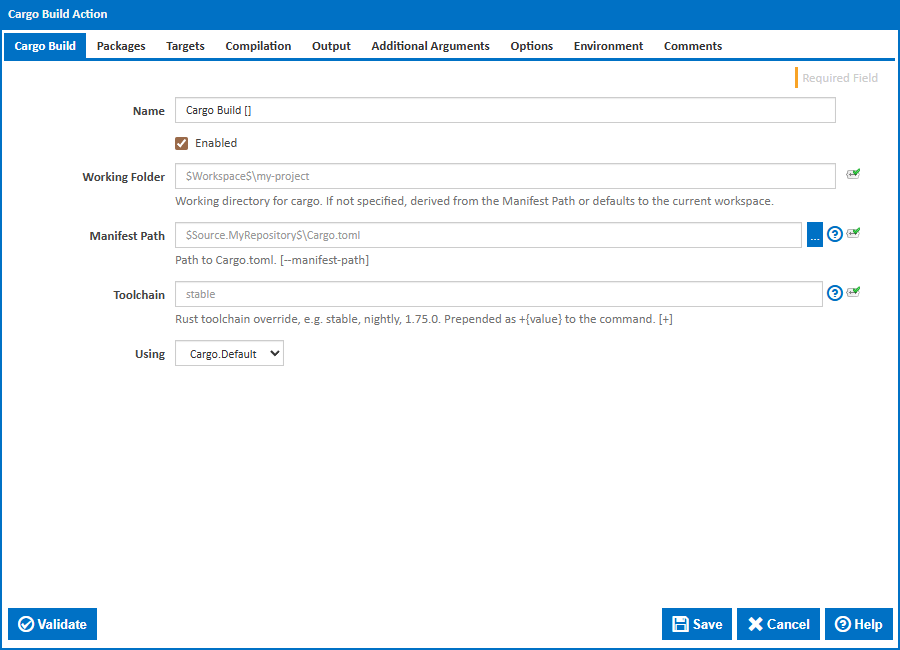
Name
A friendly name for this action (will be displayed in the actions workflow area).
Enabled
Determines if this action will be run within the relevant stage.
Manifest Path
Path to the Cargo.toml manifest file. By default, Cargo searches the current directory and parent directories for Cargo.toml. Only specify this when the manifest is not discoverable from the working folder. [--manifest-path]
Working Folder
Working directory for Cargo. If not specified, it is derived from the Manifest Path or defaults to the current workspace.
Toolchain
Rust toolchain override, e.g. stable, nightly, 1.75.0. The toolchain must already be installed on the build agent via rustup toolchain install. [+<toolchain>]
Using
The Using drop down is populated with any property collector whose namespace matches the pattern defined by the Cargo action. If you create a property collector for this action, make sure you select the Path Finder PlugIn type. For more in-depth explanations on property collectors see Property Collectors.
Alternatively, you can select the Custom option from the Using drop down list and specify a path in the resulting input field that will be displayed. Please read Why it's a good idea to use a property collector before using this option.
Packages
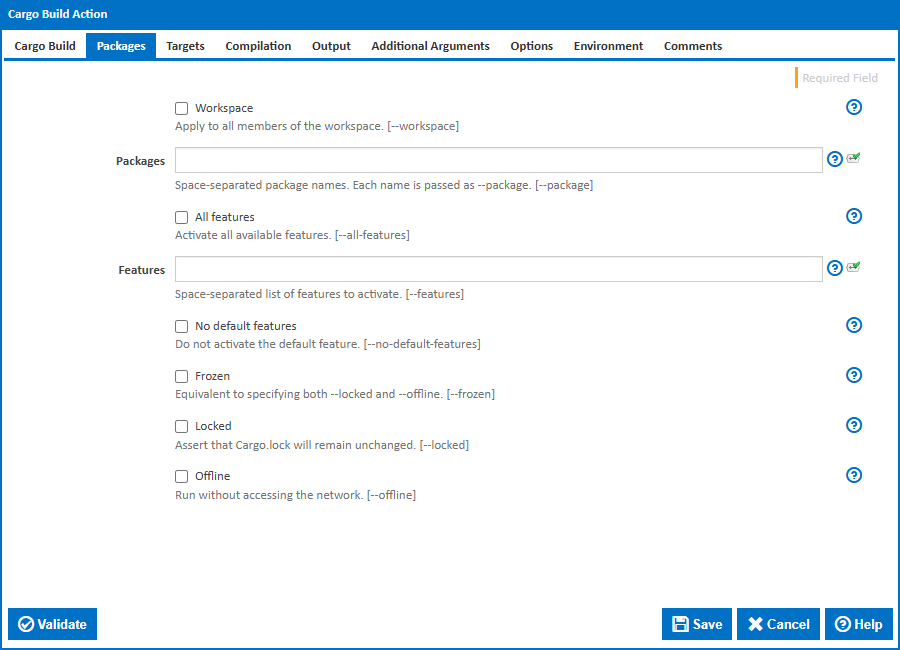
Workspace
Apply the command to all members of the workspace. A Cargo workspace is a project that contains multiple packages. Without this option, Cargo only operates on the package in the current directory. [--workspace]
Packages
Space-separated package names. Each name is passed as a separate --package argument. Supports glob patterns. Mutually exclusive with Workspace. [--package]
This field is visible when Workspace is not ticked.
Exclude
Space-separated packages to exclude from the workspace build. Supports glob patterns. [--exclude]
This field is visible when Workspace is ticked.
All features
Activate all available features defined in the package. [--all-features]
Features
Space-separated list of features to activate. Use package-name/feature-name syntax when targeting a specific package in a workspace. [--features]
This field is visible when All features is not ticked.
No default features
Do not activate the default feature. Useful for testing minimal dependency builds. Can be combined with Features to selectively re-enable specific features. [--no-default-features]
This field is visible when All features is not ticked.
Frozen
Equivalent to specifying both --locked and --offline. Prevents both lock file changes and network access. Use for fully reproducible builds in air-gapped or offline environments. [--frozen]
Locked
Assert that Cargo.lock will remain unchanged. Fails if the lock file is missing or if Cargo would need to modify it. Recommended for CI builds to catch dependency drift. [--locked]
This field is visible when Frozen is not ticked.
Offline
Run without accessing the network. Only locally cached packages will be used. Run cargo fetch beforehand to ensure all dependencies are cached. [--offline]
This field is visible when Frozen is not ticked.
Targets
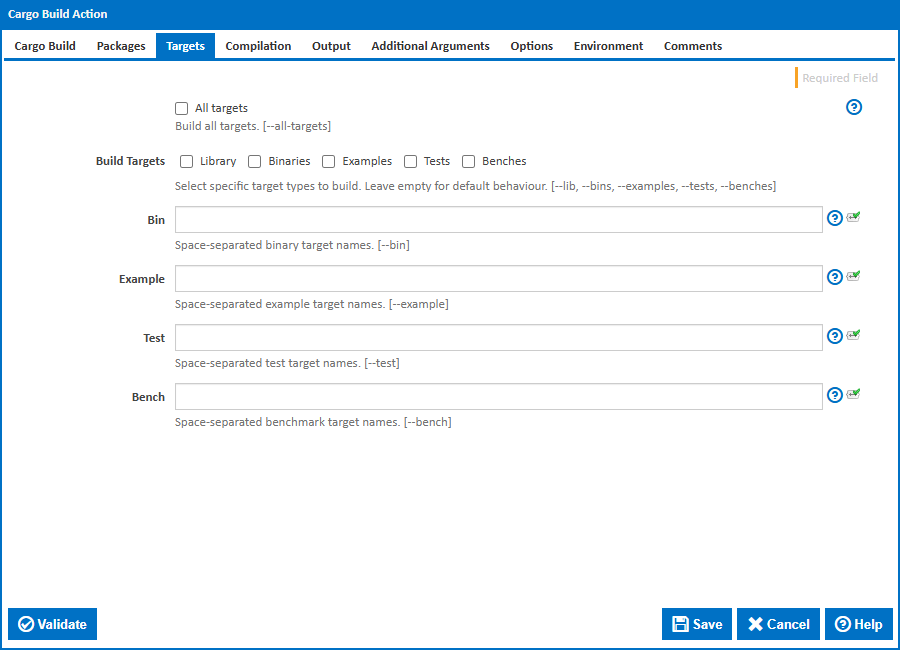
All targets
Build all target types: libraries, binaries, examples, test suites, and benchmarks. Equivalent to selecting every option in the Build Targets list. [--all-targets]
Build Targets
Select specific target types to build. Leave empty for default behaviour. [--lib, --bins, --examples, --tests, --benches]
This field is visible when All targets is not ticked.
Bin
Space-separated binary target names. Use instead of selecting Binaries in the targets list when you only need specific ones. [--bin]
This field is visible when All targets is not ticked and Binaries is not selected in Build Targets.
Example
Space-separated example target names. [--example]
This field is visible when All targets is not ticked and Examples is not selected in Build Targets.
Test
Space-separated test target names. Each name corresponds to an integration test file in the tests/ directory or a test target declared in Cargo.toml. [--test]
This field is visible when All targets is not ticked and Tests is not selected in Build Targets.
Bench
Space-separated benchmark target names. [--bench]
This field is visible when All targets is not ticked and Benches is not selected in Build Targets.
Compilation
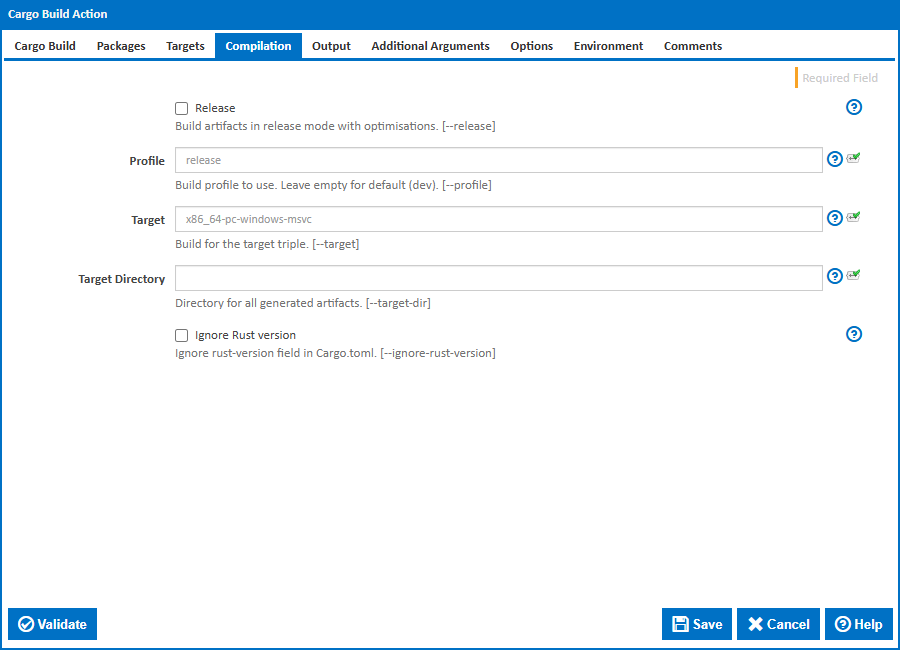
Release
Build artifacts in release mode with optimisations. Enables compiler optimisations and disables debug assertions. Compilation is slower but produces faster, smaller binaries. [--release]
Profile
Build profile to use. Leave empty for the default (dev). Built-in profiles: dev, release, test, bench. Custom profiles can be defined in Cargo.toml under [profile.<name>]. [--profile]
This field is visible when Release is not ticked.
Target
Build for a different target triple, e.g. x86_64-unknown-linux-gnu or aarch64-apple-darwin. The target must be installed on the build agent via rustup target add. [--target]
Target Directory
Directory for all generated artifacts. Overrides the default target/ directory in the workspace root. [--target-dir]
Ignore Rust Version
Ignore the rust-version field in Cargo.toml and allow building with any installed Rust toolchain. [--ignore-rust-version]
Output
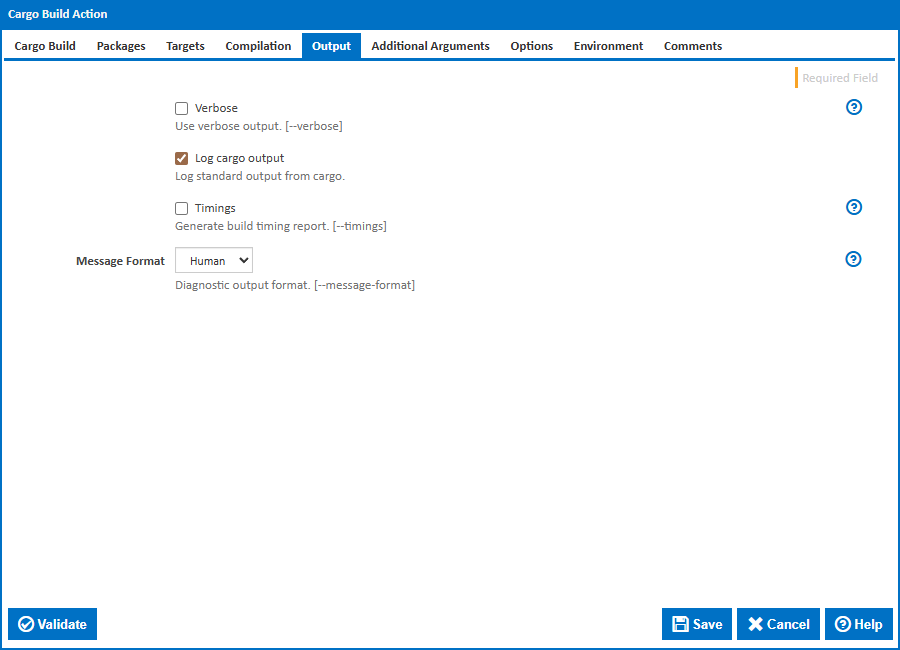
Verbose
Use verbose output. Produces detailed output including compiler invocations and full command lines. [--verbose]
Log cargo output
Log standard output from Cargo to the build log. Enabled by default.
Timings
Generate an HTML build timing report in the target/cargo-timings/ directory showing how long each crate took to compile. Useful for identifying bottlenecks in large builds. [--timings]
Message Format
Diagnostic output format. [--message-format]
Options:
- Human (default) -- default human-readable output.
- Short -- shorter one-line diagnostics.
- Json -- machine-readable JSON messages, one per line.
Additional Arguments
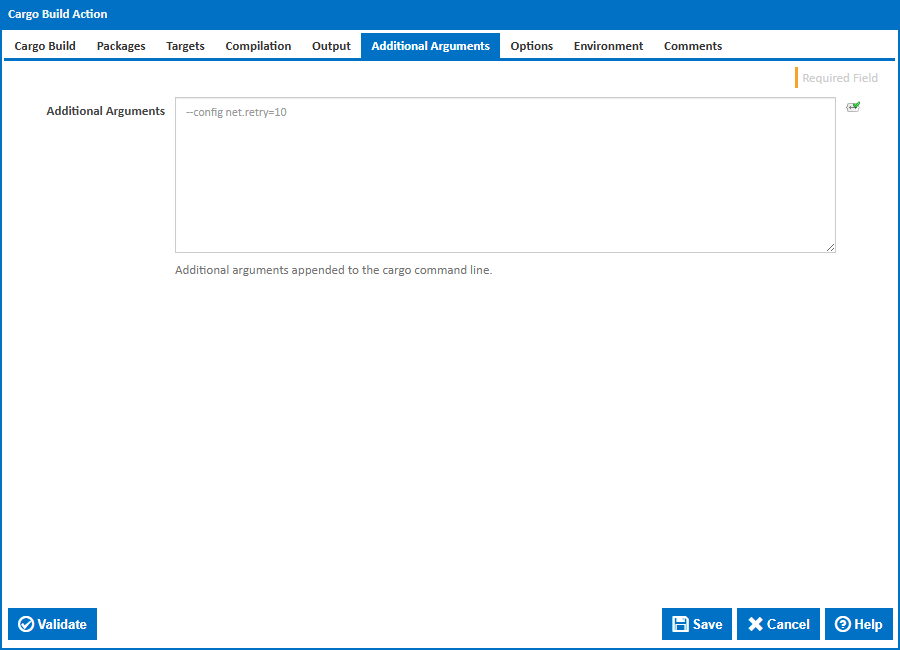
Additional Arguments
Additional arguments appended to the cargo build command line.
Options
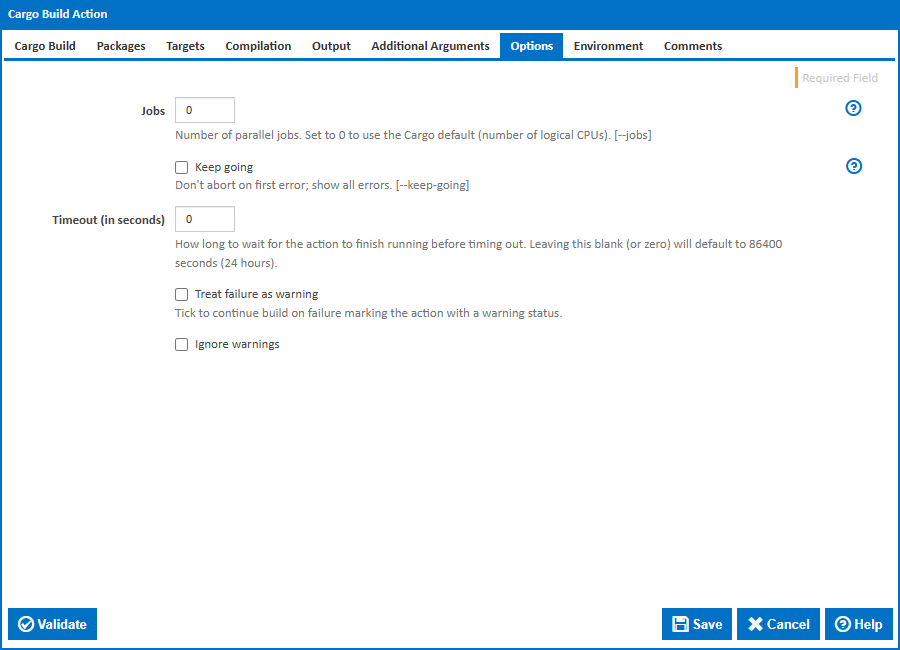
Jobs
Number of parallel jobs. Controls how many compiler processes run simultaneously. Set to 0 to use the Cargo default (number of logical CPUs). [--jobs]
Keep Going
Continue building as many crates in the dependency graph as possible after a failure, rather than stopping at the first error. Useful for identifying all broken crates in a single build run. [--keep-going]
Timeout (in seconds)
How long to wait for the action to finish running before timing out. Leaving this blank (or zero) will default to 86400 seconds (24 hours).
Treat failure as warning
Tick to continue build on failure marking the action with a warning status.
Ignore warnings
If this is ticked, any warnings logged will not mark the action with a warning status.
Environment
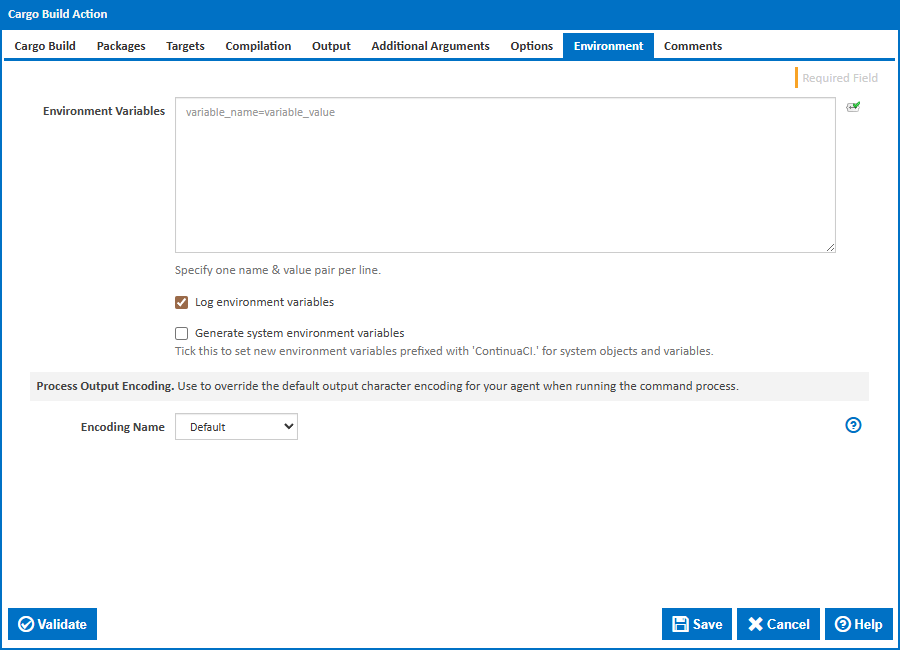
Environment Variables
Multiple environment variables can be defined - one per line. These are set before the command line is run.
Log environment variables
If this is ticked, environment variable values are written to the build log.
Generate system environment variables
Tick this checkbox to set up a list of new environment variables prefixed with 'ContinuaCI.' for all current system expression objects and variables.
Mask sensitive variable values in system environment variables
This checkbox is visible only if the 'Generate system environment variables' checkbox is ticked.
If this is ticked, the values of any variables marked as sensitive will be masked with **** when setting system environment variables. Clear this to expose the values.
Encoding Name
The encoding to use for reading the process output. Options are Default, OEM code page, CodePage850, CodePage1252, UTF8, UTF16, and Other Code Page. If your output encoding is not listed, select 'Other Code Page' to enter a code page number.
Code Page
This field is visible only if 'Encoding Name' is set to Other Code Page.
The code page number to use for reading the process output.