DotNet New
The DotNet New action in Continua CI is a wrapper around the .NET command line tools. If you're having trouble using the DotNet New action, please refer to the .NET CLI documentation.
The DotNet New action creates a .NET project, configuration file or solution based on a template.
DotNet New
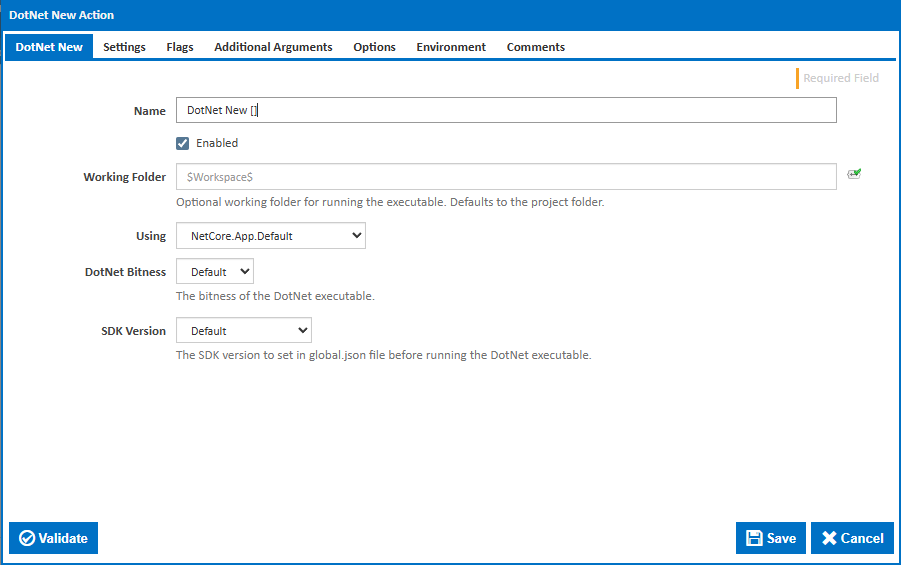
Name
A friendly name for this action (will be displayed in the actions workflow area).
Enabled
Determines if this action will be run within the relevant stage.
Working Folder
Optional working folder for running the executable. Defaults to the workspace folder.
Using
The Using drop down is populated with any property collector whose namespace matches the pattern defined by the DotNet CLI actions. The pattern for this action is ^NetCore\.App(?:\.|$)
If you create a property collector for this action, make sure you select the Path Finder PlugIn type and give it a name that will match the pattern above. Example names listed here, search the table's Plugin column for "DotNet New".
For more in-depth explanations on property collectors see Property Collectors.
Alternatively, you can select the Custom option from the Using drop down list and specify a path in the resulting input field that will be displayed. Please read Why it's a good idea to use a property collector before using this option.
DotNet Bitness
The bitness of the DotNet executable. Options are Default, 32 Bit (X86), or 64 Bit (X64).
SDK Version
The SDK version to set in global.json file before running the DotNet executable.
Custom SDK Version
A custom SDK version string. This field is only visible when the SDK Version is set to 'Custom'.
Settings
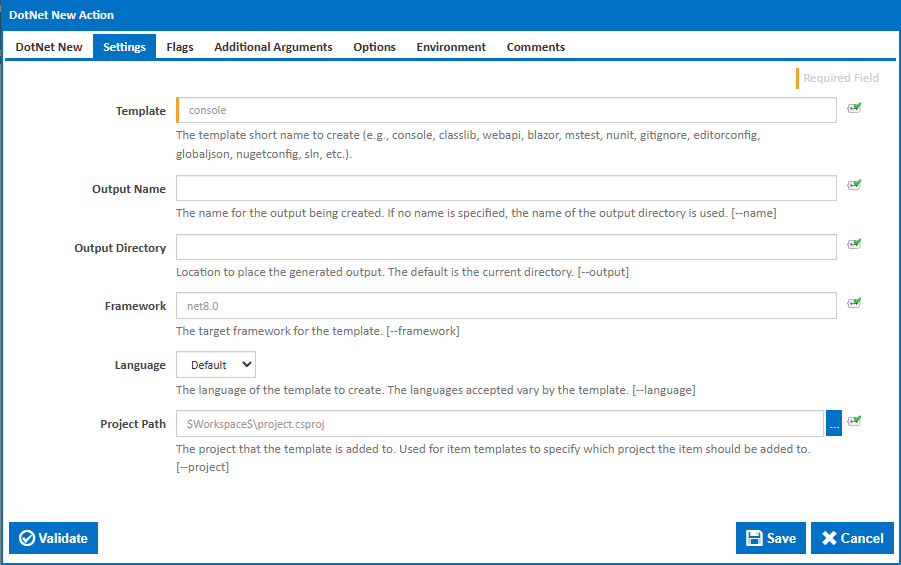
Template
The template short name to create (e.g., console, classlib, webapi, blazor, mstest, nunit, gitignore, editorconfig, globaljson, nugetconfig, sln). This is a required field. Run dotnet new list on the command line to see all available templates for your installed SDK version.
Output Name
The name for the output being created. If no name is specified, the name of the output directory is used. [--name]
Output Directory
Location to place the generated output. The default is the current directory. Relative paths will be anchored to the workspace folder. [--output]
Framework
The target framework for the template (e.g., net8.0). [--framework]
Language
The language of the template to create. The languages accepted vary by the template. Select from Default, C#, F#, VB or Custom. If left as Default, no language argument is passed and the template's default language is used. [--language]
Custom Language
This field is only visible when Language is set to Custom. Enter a custom language identifier for the template. This is a required field when visible. [--language]
Project Path
The project that the template is added to. This is used for item templates to specify which project the item should be added to. [--project]
Flags
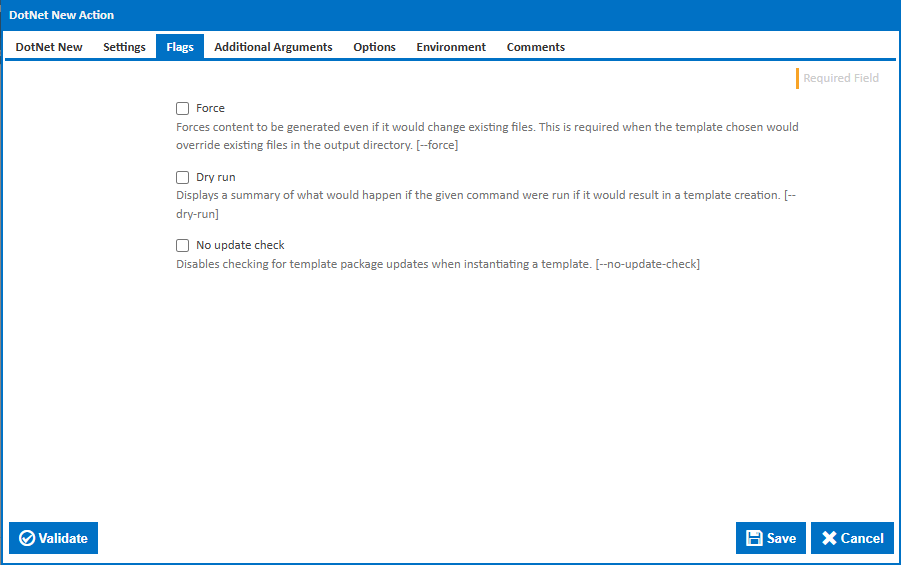
Force
Forces content to be generated even if it would change existing files. This is required when the template chosen would override existing files in the output directory. [--force]
Dry run
Displays a summary of what would happen if the given command were run if it would result in a template creation. [--dry-run]
No update check
Disables checking for template package updates when instantiating a template. [--no-update-check]
Additional Arguments
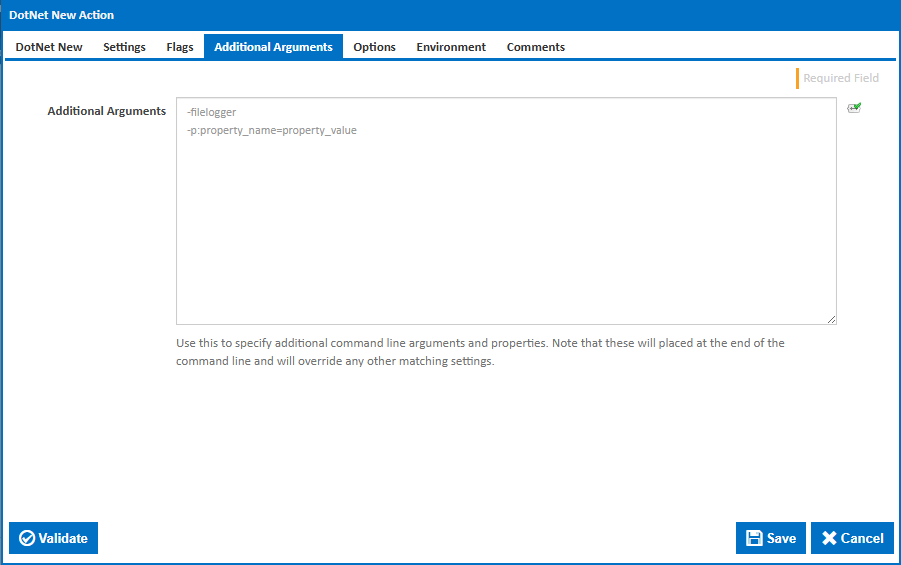
Additional Arguments
Use this to specify additional command line arguments. Note that these will be placed at the end of the command line and will override any other matching settings. This can be used to pass template-specific arguments (e.g., --sdk-version for the globaljson template, or --auth for the mvc template).
Options
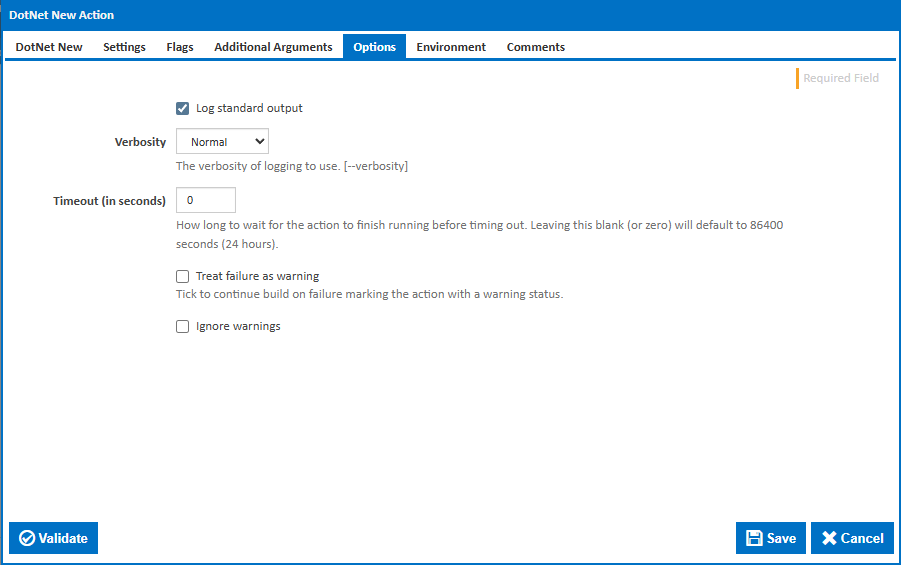
Log standard output
If this is ticked, the command line output is written to the build log.
Verbosity
The amount of information detail to display in the build log. This field is only visible when Log standard output is ticked. [--verbosity]
Timeout (in seconds)
How long to wait for the action to finish running before timing out. Leaving this blank (or zero) will default to 86400 seconds (24 hours).
Treat failure as warning
Tick to continue build on failure, marking the action with a warning status.
Ignore warnings
If this is ticked, any warnings logged will not mark the action with a warning status.
Environment
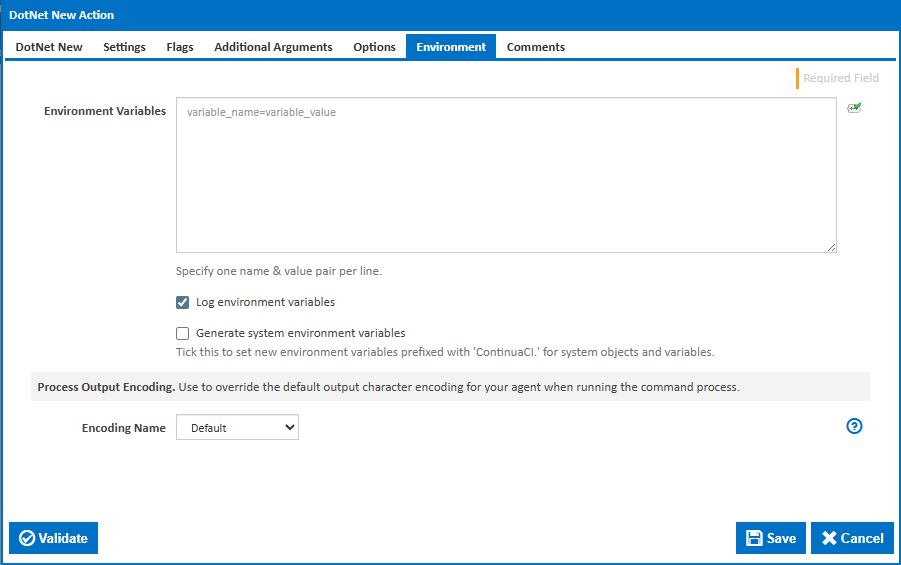
Environment Variables
Multiple environment variables can be defined - one per line. These are set before the command line is run.
Log environment variables
If this is ticked, environment variable values are written to the build log.
Generate system environment variables
Tick this checkbox to set up a list of new environment variables prefixed with 'ContinuaCI.' for all current system expression objects and variables.
Mask sensitive variable values in system environment variables
This checkbox is visible only if the 'Generate system environment variables' checkbox is ticked.
If this is ticked, the values of any variables marked as sensitive will be masked with **** when setting system environment variables. Clear this to expose the values.