Cargo Fmt Action
The Cargo Fmt action checks or applies Rust code formatting using cargo fmt. In check mode (the default), it verifies that all source files conform to the project's formatting rules without modifying them -- ideal for CI enforcement. When check mode is disabled, it reformats files in place.
The Cargo Fmt action in Continua is a wrapper around the Cargo command line. If you're having trouble using the Cargo Fmt action, please refer to the Cargo Documentation.
Cargo Fmt
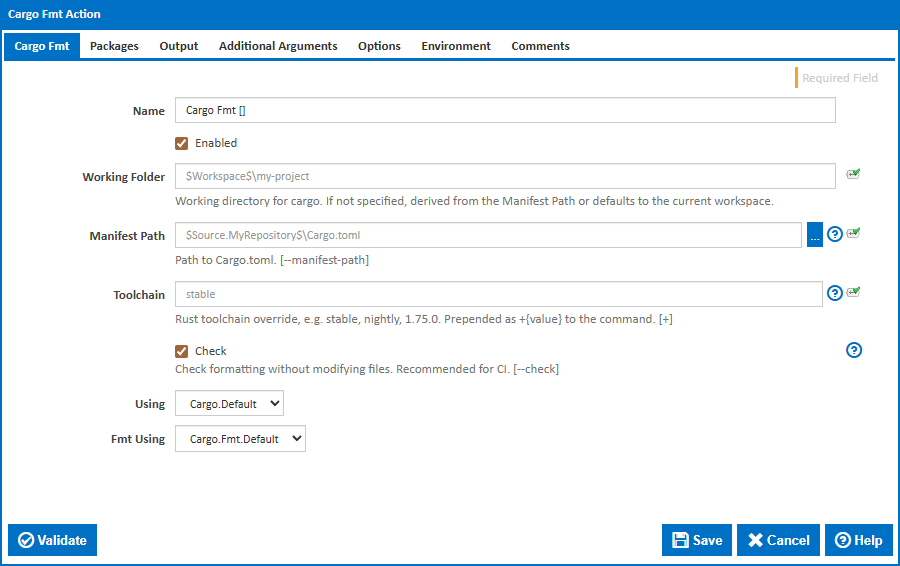
Name
A friendly name for this action (will be displayed in the actions workflow area).
Enabled
Determines if this action will be run within the relevant stage.
Manifest Path
Path to the Cargo.toml manifest file. By default, Cargo searches the current directory and parent directories for Cargo.toml. Only specify this when the manifest is not discoverable from the working folder. [--manifest-path]
Working Folder
Working directory for Cargo. If not specified, it is derived from the Manifest Path or defaults to the current workspace.
Toolchain
Rust toolchain override, e.g. stable, nightly, 1.75.0. The toolchain must already be installed on the build agent via rustup toolchain install. [+<toolchain>]
Check
Check formatting without modifying files. Exits with code 0 if all files are correctly formatted, or code 1 if any files need formatting changes. Enabled by default. Recommended for CI to enforce formatting standards. [--check]
Using
The Using drop down is populated with any property collector whose namespace matches the pattern defined by the Cargo action. If you create a property collector for this action, make sure you select the Path Finder PlugIn type. For more in-depth explanations on property collectors see Property Collectors.
Alternatively, you can select the Custom option from the Using drop down list and specify a path in the resulting input field that will be displayed. Please read Why it's a good idea to use a property collector before using this option.
Fmt Using
The Fmt Using drop down is populated with any property collector whose namespace matches the Cargo.Fmt pattern. This allows you to specify the location of cargo-fmt.exe independently from cargo.exe. If you create a property collector for this action, make sure you select the Path Finder PlugIn type. For more in-depth explanations on property collectors see Property Collectors.
Alternatively, you can select the Custom option from the Fmt Using drop down list and specify a path to cargo-fmt.exe in the resulting Fmt Path input field that will be displayed. Please read Why it's a good idea to use a property collector before using this option.
Packages
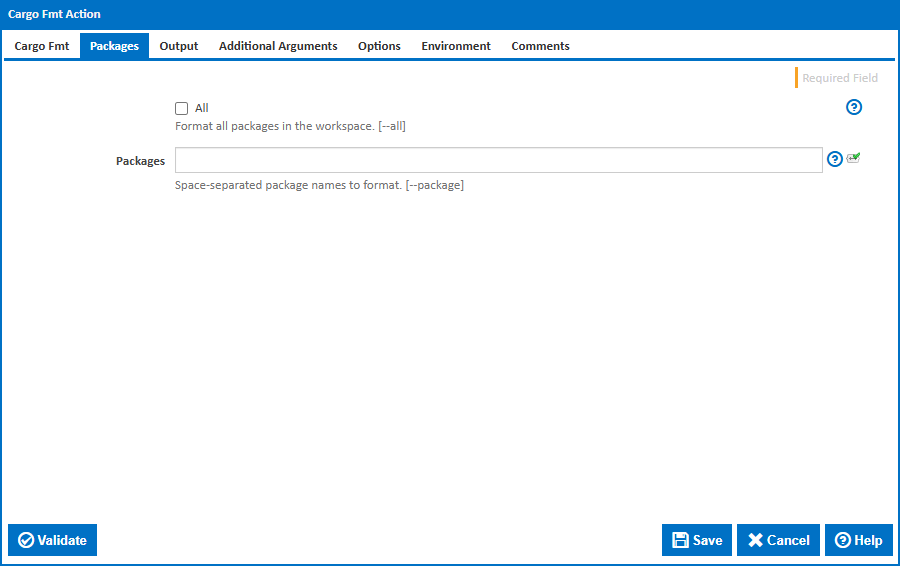
All
Format all packages in the workspace. Without this flag, only the current (root) package is formatted. [--all]
Packages
Space-separated package names to format. Each name is passed as a separate --package argument. Use to format specific packages in a workspace rather than all of them. [--package]
This field is visible when All is not ticked.
Output
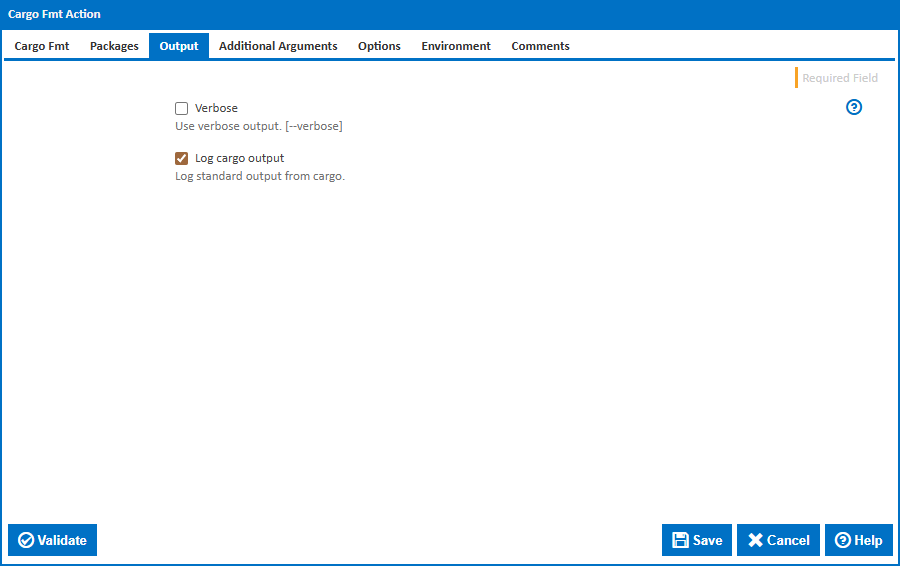
Verbose
Use verbose output. [--verbose]
Log cargo output
Log standard output from Cargo to the build log. Enabled by default.
Additional Arguments
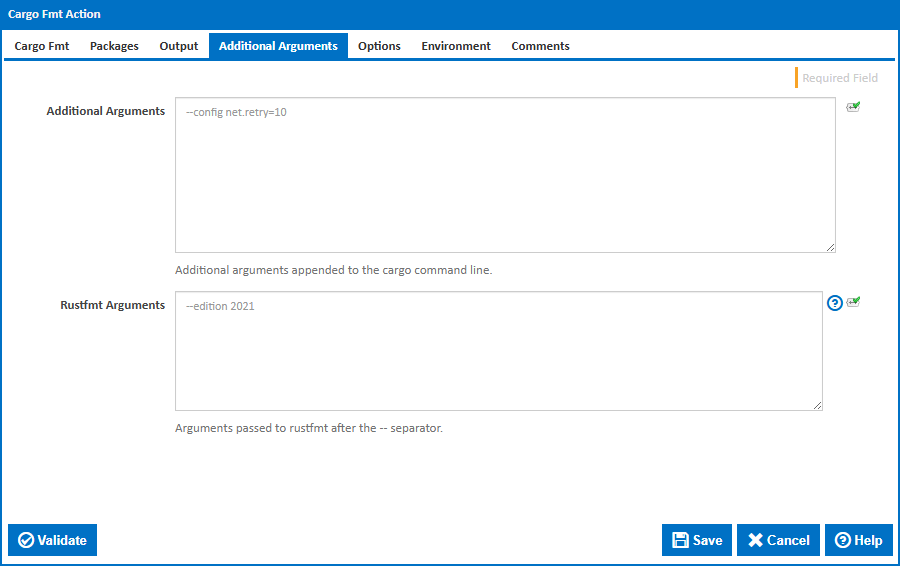
Additional Arguments
Additional arguments appended to the cargo fmt command line.
Rustfmt Arguments
Arguments passed to rustfmt after the -- separator. Common options include --edition 2021 to override the Rust edition, and --emit stdout to write formatted output to stdout instead of modifying files. Configure persistent formatting rules in rustfmt.toml or .rustfmt.toml in the project root.
Options
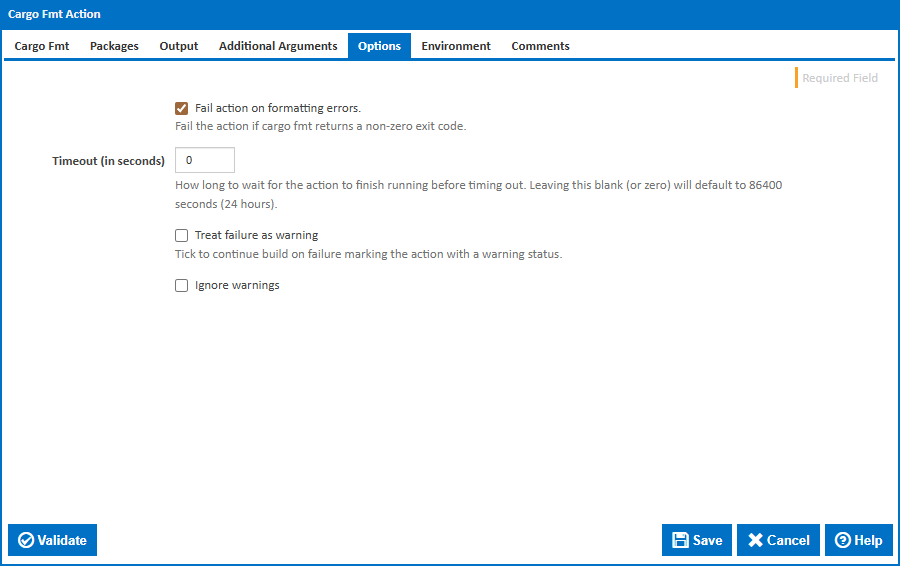
Fail action on formatting errors
Fail the action if cargo fmt returns a non-zero exit code. Untick to report formatting issues as warnings without failing the build.
Timeout (in seconds)
How long to wait for the action to finish running before timing out. Leaving this blank (or zero) will default to 86400 seconds (24 hours).
Treat failure as warning
Tick to continue build on failure marking the action with a warning status.
Ignore warnings
If this is ticked, any warnings logged will not mark the action with a warning status.
Environment
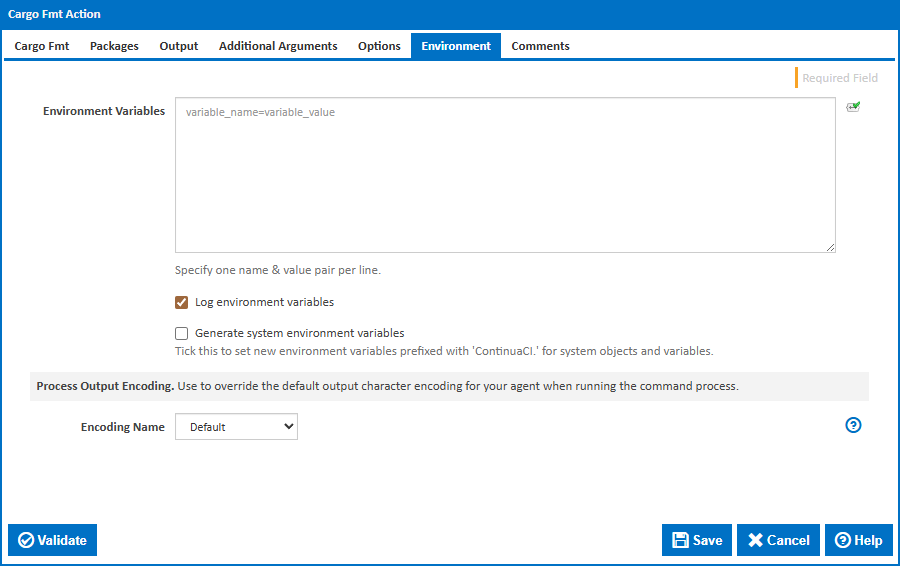
Environment Variables
Multiple environment variables can be defined - one per line. These are set before the command line is run.
Log environment variables
If this is ticked, environment variable values are written to the build log.
Generate system environment variables
Tick this checkbox to set up a list of new environment variables prefixed with 'ContinuaCI.' for all current system expression objects and variables.
Mask sensitive variable values in system environment variables
This checkbox is visible only if the 'Generate system environment variables' checkbox is ticked.
If this is ticked, the values of any variables marked as sensitive will be masked with **** when setting system environment variables. Clear this to expose the values.
Encoding Name
The encoding to use for reading the process output. Options are Default, OEM code page, CodePage850, CodePage1252, UTF8, UTF16, and Other Code Page. If your output encoding is not listed, select 'Other Code Page' to enter a code page number.
Code Page
This field is visible only if 'Encoding Name' is set to Other Code Page.
The code page number to use for reading the process output.