Signotaur Verify Action
The Signotaur Verify action allows you to verify the signature of a file or set of files. This action provides various options to configure the verification process, including specifying the files to be verified and handling trust validation.
The Signotaur Verify action in Continua is a wrapper around the Signotaur client tool command line. If you're having trouble using the Signotaur Verify action, please refer to the Command Line Reference.
Signotaur Verify
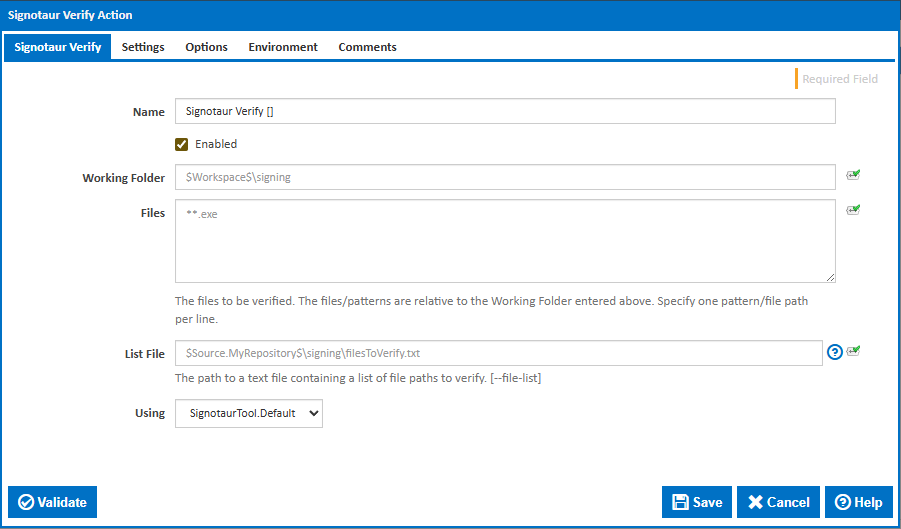
Name
A friendly name for this action (will be displayed in the actions workflow area).
Enabled
Determines if this action will be run within the relevant stage.
Working Folder
The folder where the files to be verified are located. This can be an absolute path or a path relative to the build workspace.
Files
Specify the file(s) to be verified. You can specify an exact file path or you can use ANT pattern matching to specify multiple files. Each file path or pattern must be entered on a new line. You can exclude files by prefixing the file name or pattern with a dash. e.g -*.ignore. Exclude patterns always take precedence over include patterns.
More information about pattern wild cards can be found on the Ant Pattern Usage page.
List File
The path to a text file containing a list of files to verify. This is helpful for verifying multiple files at once without specifying each one on the command line. *[--file-list]
Using
The Using drop down is populated with any property collector whose namespace matches the pattern defined by the Signotaur action. The pattern for this action is ^SignotaurTool(?:\.|$). If you create a property collector for this action, make sure you select the Path Finder PlugIn type and give it a name that will match the pattern above. For more in-depth explanations on property collectors see Property Collectors.
Alternatively, you can select the Custom option from the Using drop down list and specify a path in the resulting input field that will be displayed. Please read Why it's a good idea to use a property collector before using this option.
Settings
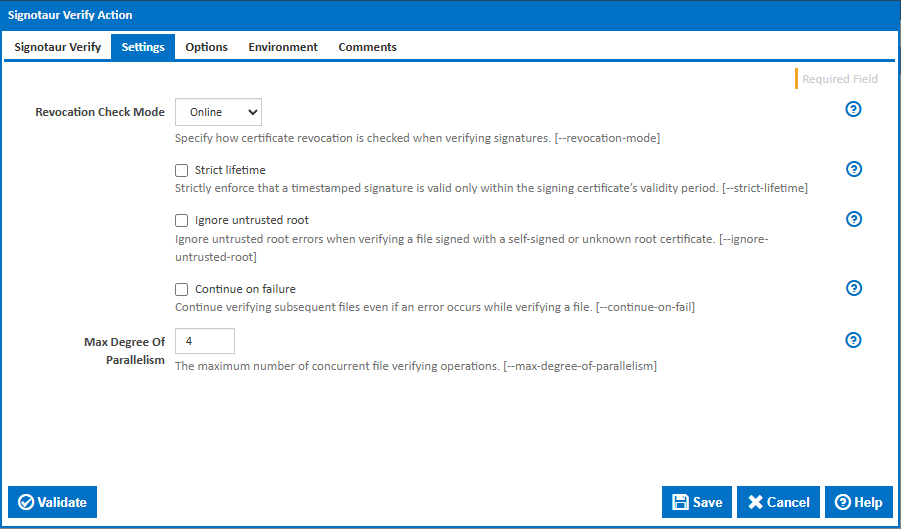
Revocation Check Mode
Specify how certificate revocation is checked when verifying a signature. This ensures that none of the certificates in the signing chain have been revoked. [--revocation-mode]
Options:
- Online – Perform live checks against Certificate Revocation Lists (CRL) and OCSP servers (default).
- Offline – Use only cached CRL/OCSP information (faster if network access is restricted).
- NoCheck – Skip revocation checking entirely (higher risk).
Strict lifetime
Strictly enforce that a timestamped signature is valid only within the validity period of the signing certificate. Use this to ensure that a signature cannot remain valid after the signing certificate has expired or been revoked. [--strict-lifetime]
Ignore untrusted root
Ignores untrusted root errors when verifying a file signed with a self-signed certificate. Use this option with caution, as it bypasses trust validation for the root certificate. [--ignore-untrusted-root]
Continue on failure
Continue verifying subsequent files even if an error occurs while verifying a file. This option is useful for batch verification scenarios where you want to attempt to verify all files regardless of individual failure. [--continue-on-fail]
Max Degree Of Parallelism
The maximum number of concurrent file verification operations. This setting allows you to control the degree of parallelism to optimize performance. The default value is 4, but you can adjust this based on the capabilities of your machine. [--max-degree-of-parallelism]
Options
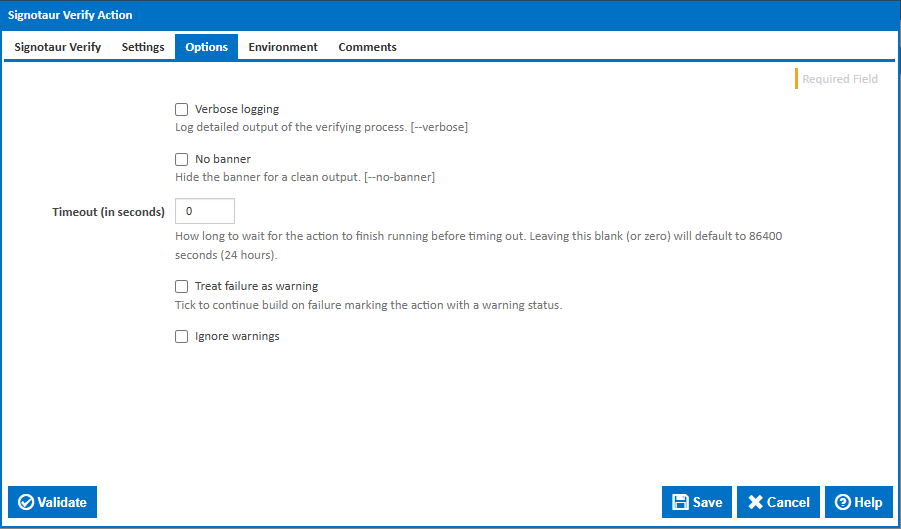
Verbose logging
Log detailed output of the verification process. [--verbose]
No banner
Hide the banner for a clean log output. [--nb]
Timeout (in seconds)
How long to wait for the action to finish running before timing out. Leaving this blank (or zero) will default to 86400 seconds (24 hours).
Treat failure as warning
Tick to continue the build on failure, marking the action with a warning status.
Ignore warnings
If this is ticked, any warnings logged will not mark the action with a warning status.
Environment
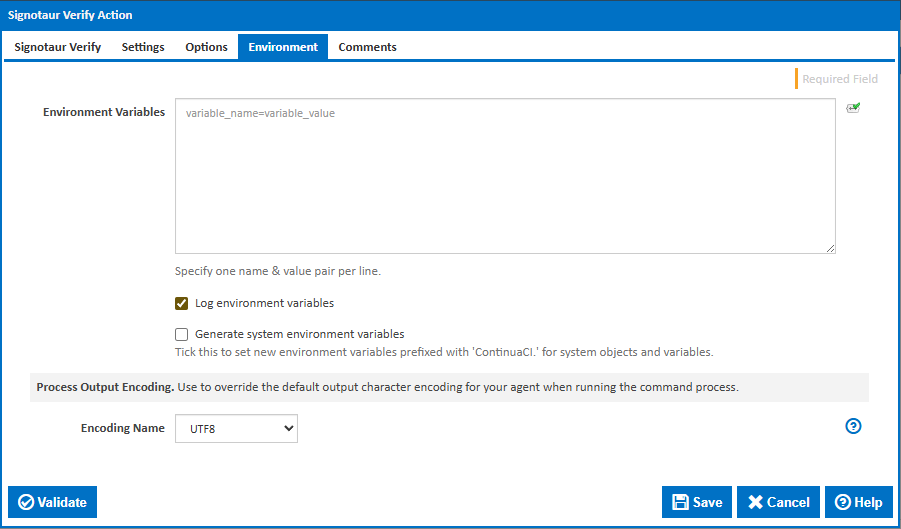
Environment Variables
Multiple environment variables can be defined - one per line. These are set before the command line is run.
Log environment variables
If this is ticked, environment variable values are written to the build log.
Generate system environment variables
Tick this checkbox to set up a list of new environment variables prefixed with 'ContinuaCI.' for all current system expression objects and variables.
Mask sensitive variable values in system environment variables
This checkbox is visible only if the 'Generate system environment variables' checkbox is ticked.
If this is ticked, the values of any variables marked as sensitive will be masked with **** when setting system environment variables. Clear this to expose the values.