Get AWS Secret
The Get AWS Secret build event handler retrieves a secret from AWS Secrets Manager and sets its value into a secure build variable. This allows builds to access secrets stored in AWS without exposing credentials in configuration files.
The secret value is retrieved on the Continua CI server (not the agent), keeping AWS credentials secure. The target build variable must be a Password type variable or have the Sensitive option enabled.
Get AWS Secret
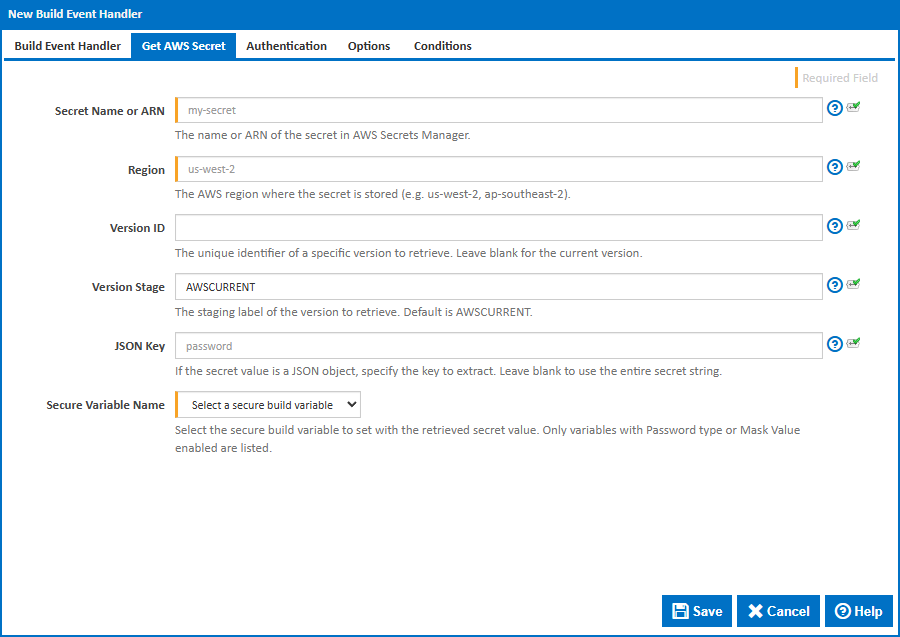
Secret Name or ARN
The friendly name or full ARN of the secret in AWS Secrets Manager. Found in the AWS Console under Secrets Manager > Secrets.
The ARN format is arn:aws:secretsmanager:{region}:{account-id}:secret:{name}.
Region
The AWS region where the secret is stored. This must match the region shown in the AWS Console URL or the secret's ARN. Common regions include:
us-east-1(US East - N. Virginia)us-west-2(US West - Oregon)eu-west-1(Europe - Ireland)ap-southeast-2(Asia Pacific - Sydney)
Version ID
An optional UUID that uniquely identifies a specific version of the secret. Found in the AWS Console under the secret's Versions tab. Leave blank to retrieve the current version.
Version Stage
The staging label of the version to retrieve. The default is AWSCURRENT, which always points to the current version. Other built-in labels include:
AWSCURRENT- The current active version (default)AWSPREVIOUS- The previous version (automatically set when a new version becomes current)
Custom staging labels can also be used if configured as part of a secret rotation workflow.
JSON Key
AWS secrets are often stored as JSON objects. For example:
{
  "username": "admin",
  "password": "s3cret",
  "host": "db.example.com"
}
If the secret value is a JSON object, enter the key name to extract a single value (e.g. password would retrieve s3cret from the example above).
Leave this field blank to retrieve the entire secret string as-is. This is useful for secrets that contain a single plain text value rather than a JSON object.
Secure Variable Name
Select the build variable to set with the retrieved secret value. Only variables with Password type or Sensitive enabled are listed. If no secure variables are available, you will need to create one in the configuration's Variables tab first.
Authentication
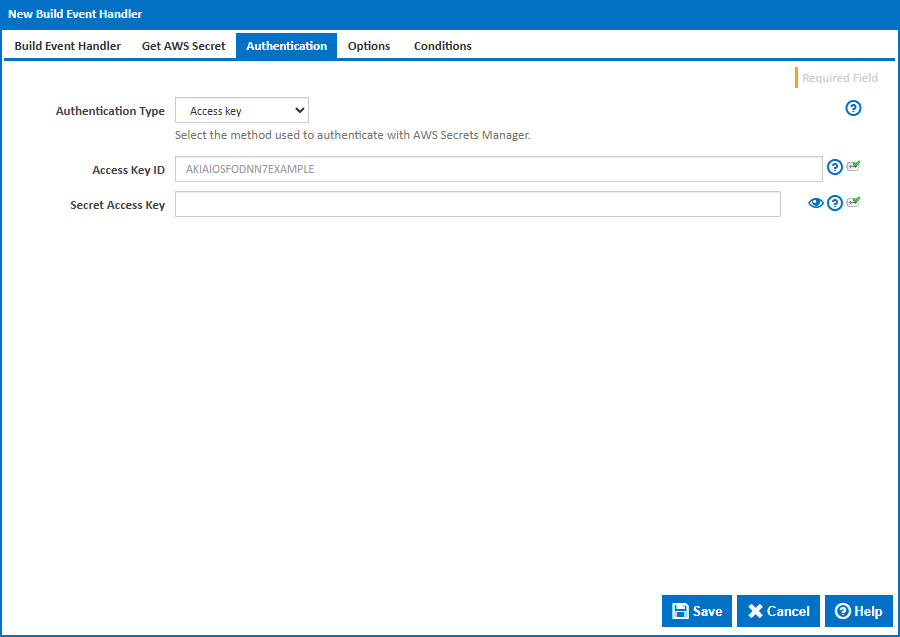
Authentication Type
The method used to authenticate with AWS Secrets Manager. The available options are:
Access Key - Authenticates using an explicit Access Key ID and Secret Access Key. This is the simplest method and is suitable when the Continua CI server is not hosted on AWS.
Profile - Uses a named AWS credentials profile from the
~/.aws/credentialsor~/.aws/configfile on the Continua CI server. Profiles can be configured withaws configure --profile {name}. The default profile is nameddefault.Default Credentials - Uses the AWS SDK default credential chain, which tries the following sources in order: system environment variables (
AWS_ACCESS_KEY_ID,AWS_SECRET_ACCESS_KEY), thedefaultprofile in~/.aws/credentials, EC2 instance profile, ECS task role, or SSO credentials. This is the recommended method when the Continua CI server runs on AWS infrastructure with an appropriate IAM role, or when adefaultcredentials profile has been configured on the server.Note: Since build event handlers run within the Continua CI Server process, environment variables must be set as system-level environment variables on the server machine before the Continua Server service starts. They cannot be set at build execution time.
Access Key Authentication
Access Key ID
The AWS access key ID. Found in the AWS Console under IAM > Users > > Security credentials > Access keys. Access key IDs start with AKIA.
The IAM user or role must have the secretsmanager:GetSecretValue permission for the target secret.
Secret Access Key
The AWS secret access key that corresponds to the Access Key ID. This value is shown only once when the access key is created. If lost, you will need to create a new access key pair in IAM.
Profile Authentication
Profile Name
The name of the AWS credentials profile to use. This is the profile name in square brackets in ~/.aws/credentials (e.g. [my-profile]). The default profile is named default.
Configure a profile with:
aws configure --profile {name}
Options
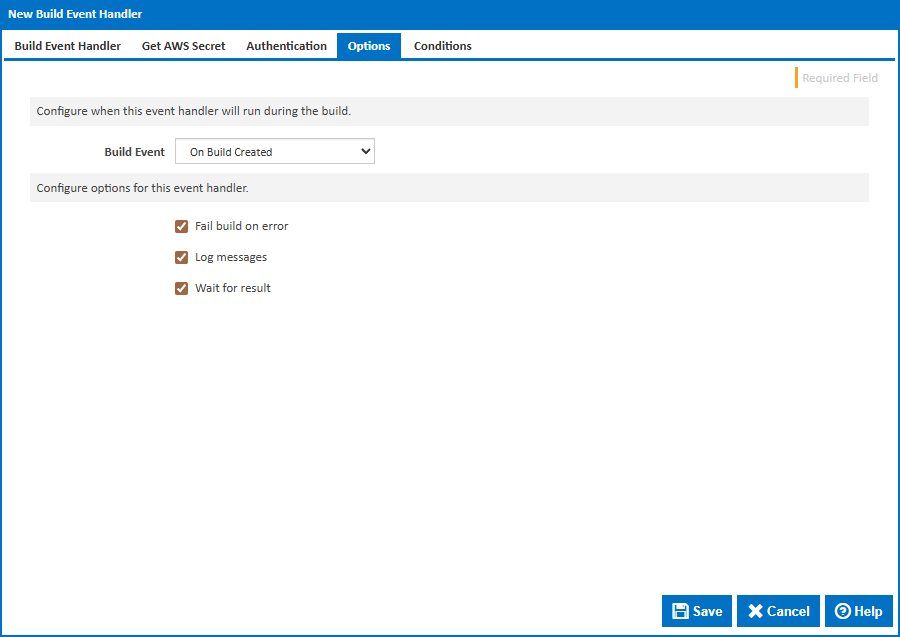
Build Event
Specify when to retrieve the secret by selecting one of the available Build Events. The default is On Build Created, which retrieves the secret at the earliest point in the build lifecycle so it is available for all stages.
Stage
For stage events you can choose the stage name or select "(all stages)".
Build Status
For completion events you can choose the status which triggers the build event handler. This can be Successful, Failed or Any.
Fail build on error
When enabled, the build will fail if the secret cannot be retrieved. When disabled, an error will be logged but the build will continue.
Log messages
When enabled, informational and error messages will be added to the build log.
Wait for result
When enabled, the build will wait for the secret retrieval to complete before continuing.