Get Azure Key Vault Secret
The Get Azure Key Vault Secret build event handler retrieves a secret from Azure Key Vault and sets its value into a secure build variable. This allows builds to access secrets stored in Azure without exposing them in configuration files or environment variables.
The secret value is retrieved on the Continua CI server (not the agent), keeping vault credentials secure. The target build variable must be a Password type variable or have the Sensitive option enabled.
Get Azure Key Vault Secret
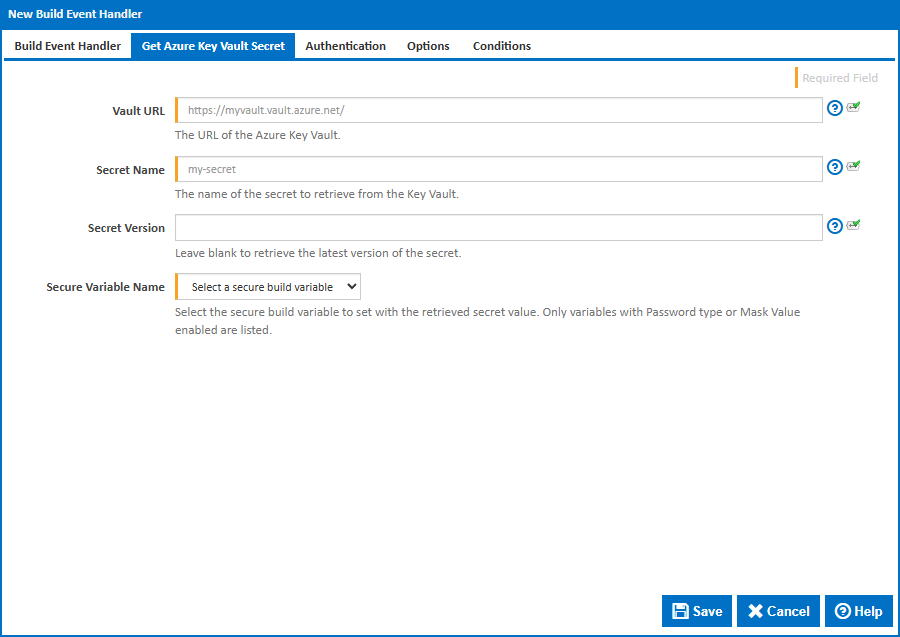
Vault URL
The URL of the Azure Key Vault. This can be found in the Azure Portal under your Key Vault's Overview page. The format is https://{vault-name}.vault.azure.net/.
Secret Name
The name of the secret to retrieve from the Key Vault. This is the identifier as shown in the Azure Portal under Key Vault > Secrets, not the secret value itself.
Secret Version
An optional version identifier for the secret. Each secret version has a unique GUID, which can be found in the Azure Portal under Key Vault > Secrets > > Versions. Leave blank to always retrieve the current version.
Secure Variable Name
Select the build variable to set with the retrieved secret value. Only variables with Password type or Sensitive enabled are listed. If no secure variables are available, you will need to create one in the configuration's Variables tab first.
Authentication
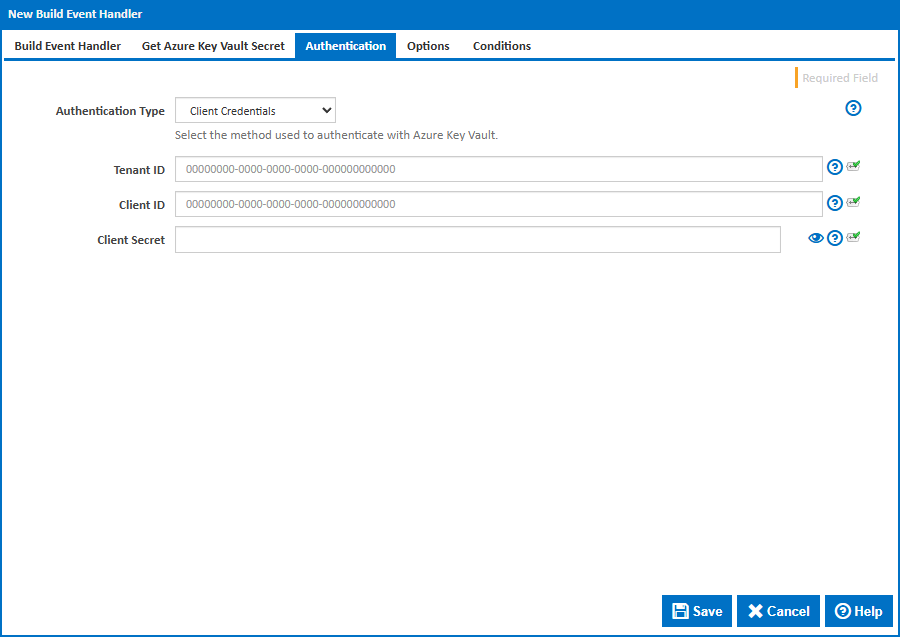
Authentication Type
The method used to authenticate with Azure Key Vault. The available options are:
Client Credentials - Authenticates using a Tenant ID, Client ID and Client Secret. This is the most common method for server-side applications. The Client Secret is created in the Azure Portal under App Registrations > > Certificates & secrets.
Client Certificate - Authenticates using a Tenant ID, Client ID and an X.509 certificate. The certificate must have a private key and be registered in the Azure App Registration. This is preferred in environments where shared secrets are not permitted.
Default Azure Credential - Uses the ambient identity available on the Continua CI server. This tries the following sources in order: Managed Identity (for Azure-hosted servers), system environment variables (
AZURE_TENANT_ID,AZURE_CLIENT_ID,AZURE_CLIENT_SECRET), Azure CLI, and Azure PowerShell. This method will not prompt interactively.Note: Since build event handlers run within the Continua CI Server process, environment variables must be set as system-level environment variables on the server machine before the Continua Server service starts. They cannot be set at build execution time.
Client Credentials
Tenant ID
The Azure Active Directory tenant ID (also known as the Directory ID). Found in the Azure Portal under Microsoft Entra ID > Overview > Tenant ID.
Client ID
The application (client) ID of the Azure AD app registration. Found in the Azure Portal under App Registrations > > Overview > Application (client) ID.
Client Secret
The client secret value. Created in the Azure Portal under App Registrations > > Certificates & secrets > Client secrets. Note that client secrets have an expiry date and will need to be rotated before they expire.
Client Certificate
When using Client Certificate authentication, the Tenant ID and Client ID fields above are also required.
Certificate Source
Specify how the certificate is provided:
- File - Provide the path to a PFX or PEM certificate file on the Continua CI server.
- Store - Select a certificate from the Windows certificate store.
Certificate Path
The full path to a PFX or PEM certificate file on the Continua CI server. The certificate must have a private key and be registered in the Azure App Registration.
Certificate Password
The password for the certificate file. Leave blank if the certificate is not password-protected.
Store Location
The location of the Windows certificate store to search. Choose Current User or Local Machine.
Store Name
The name of the Windows certificate store to search. The default is Personal (My), which is where most client authentication certificates are installed.
Find By
How to locate the certificate in the store:
- Thumbprint - Find by the SHA-1 thumbprint (hash) of the certificate. This is the most precise method.
- Subject - Find by the subject distinguished name (e.g.
CN=MyCertificate). If multiple certificates match the subject, an error will be raised and you should use a thumbprint instead.
You can find certificate thumbprints and subjects using certutil -store My from the command line or the Windows Certificate Manager (certmgr.msc).
Certificate Thumbprint
The SHA-1 thumbprint of the certificate.
Certificate Subject
The subject distinguished name of the certificate (e.g. CN=MyCertificate).
Options
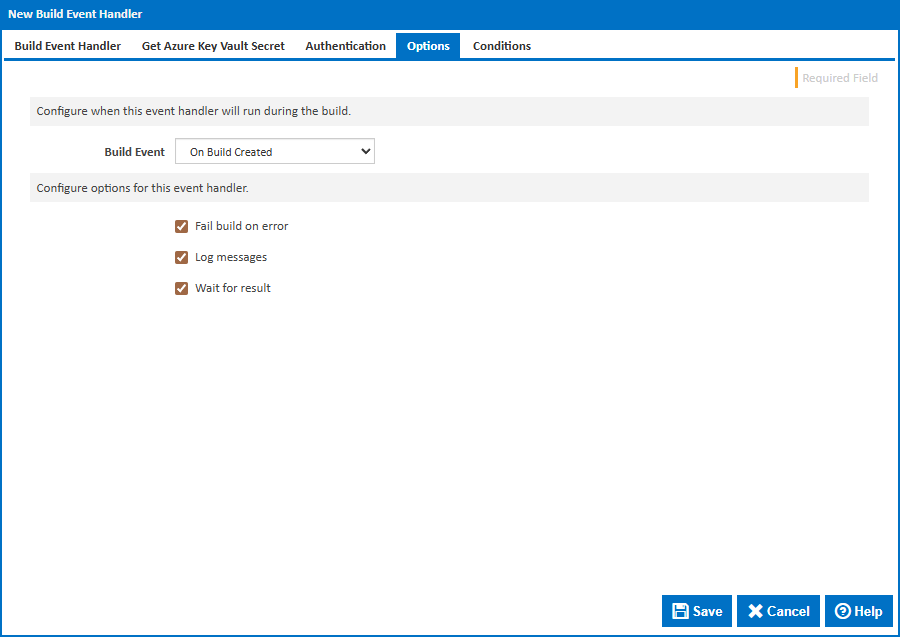
Build Event
Specify when to retrieve the secret by selecting one of the available Build Events. The default is On Build Created, which retrieves the secret at the earliest point in the build lifecycle so it is available for all stages.
Stage
For stage events you can choose the stage name or select "(all stages)".
Build Status
For completion events you can choose the status which triggers the build event handler. This can be Successful, Failed or Any.
Fail build on error
When enabled, the build will fail if the secret cannot be retrieved. When disabled, an error will be logged but the build will continue.
Log messages
When enabled, informational and error messages will be added to the build log.
Wait for result
When enabled, the build will wait for the secret retrieval to complete before continuing.