Email Settings
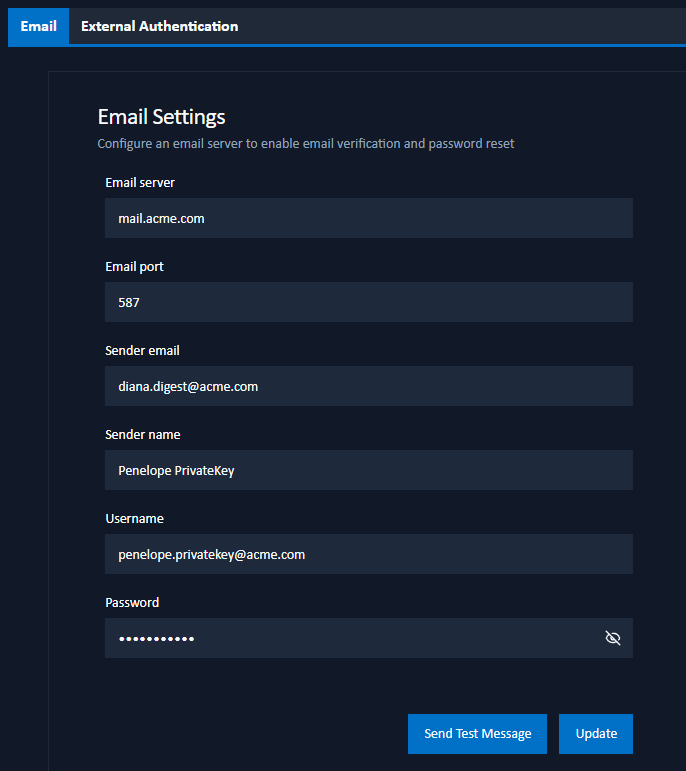
The Email Settings tab enables administrators to configure the email server settings used by Signotaur for sending verification and password reset emails.
Configuration Options
The following inputs are provided:
Email server: The address of the SMTP server.
Email port: The port number used for the SMTP server connection.
Sender email: The email address that appears in the "From" field of outgoing messages.
Sender name: The name displayed in the "From" field.
Secure sockets mode: The type of the SSL and/or TLS encryption that should be used for connecting with the SMTP server.
- No SSL or TLS: No SSL or TLS encryption should be used.
- Automatic: Allow the service to decide which SSL or TLS options to use. If the server does not support SSL or TLS, then the connection will continue without any encryption.
- SSL on connect: The connection should use SSL or TLS encryption immediately.
- Start TLS: Elevates the connection to use TLS encryption immediately after reading the greeting and capabilities of the server. If the server does not support the STARTTLS extension, then the connection will fail and an error will be return.
- Start TLS when available: Elevates the connection to use TLS encryption immediately after reading the greeting and capabilities of the server, but only if the server supports the STARTTLS extension.
Username: The username for authenticating with the SMTP server.
Password: The password for SMTP server authentication.
Testing and Saving
Once complete, you can test the settings by clicking Send Test Message to send a test email to your address, or click Update to save the settings.
Note that changes to the email settings take effect immediately.