External Authentication Settings
The External Authentication tab allows administrators to enable external authentication providers for user login. Two options are available: GitHub and Google. For each provider, a Client ID and Client Secret are required.
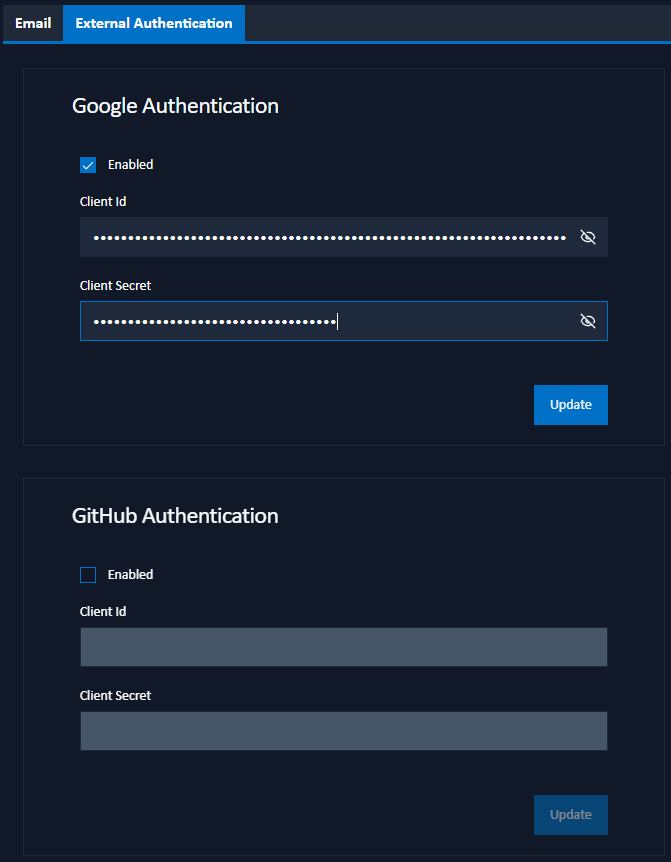
GitHub Authentication
To set up GitHub as an authentication provider:
- Visit your GitHub Developer Settings under your profile.
- Select OAuth Apps and create a new OAuth app.
- Enter the following details (replacing
https://hostname:90with your actual Signotaur URL):- Application Name: e.g., "Signotaur"
- Homepage URL: e.g.,
https://hostname:90. - Authorization Callback URL: e.g.,
https://hostname:90/oauth-github.
- Click Register Application and make a copy of the Client ID.
- Click Generate a new client secret and make a copy of the Client Secret.
- Click Enable on the GitHub Authentication form in Signotaur, and copy the Client ID and Client Secret from GitHub and paste them into the corresponding fields.
- Click Update to save the GitHub authentication settings.
Google Authentication
To set up Google as an authentication provider:
- Go to the Google APIs Console.
- Create or select a Google APIs project, then navigate to Credentials.
- Click Create Credentials and select OAuth client ID.
- For Application type, choose "Web application" and enter the following (replacing
https://hostname:90with your actual Signotaur URL):- Name: e.g., "Signotaur Server".
- Authorized JavaScript Origins: e.g.,
https://hostname:90. - Authorized Redirect URIs: e.g.,
https://hostname:90/oauth-google.
- Click Create and make a copy of the Client ID and Client Secret.
- Click Enable on the Google Authentication form in Signotaur, and copy the Client ID and Client Secret from Google and paste them into the corresponding fields.
- Click Update to save the Google authentication settings.
Changes to external authentication require restarting the Signotaur service to take effect.