Licenses
The Licenses page in the Admin section of Signotaur enables administrators to manage licenses for the application. A valid license is required for the server to accept signing requests from the Signotaur client tool. Licenses can be purchased via the VSoft Technologies website, or a 14-day Enterprise trial license can be requested directly from this page.
A table displays details of any licenses which have been added to the server, including licensee, license name, type, subscription expiry, and validity.
The Type column shows each license's edition as a coloured badge: an amber/gold Enterprise badge, or a neutral grey Standard badge.
Signotaur licenses do not expire. The date shown is the subscription expiry — the cut-off after which newer builds will not accept the license — not a license expiry. A license stays valid indefinitely for every build released before that date; renew the subscription to use builds released after it. This applies equally to Standard and Enterprise licenses. The only exception is the 14-day Enterprise trial, which is a time-limited license that expires on its end date. See Editions & Licensing.
Enterprise unlocks the Managed CA features: issuing and automatically renewing certificates from Signotaur's Internal CA or Microsoft ADCS, and using the Use Managed CA web-certificate mode. Core code signing (File, Store, and Hardware certificates) works in every edition. See Editions & Licensing.
Requesting an Enterprise Trial License
To install a 14-day Enterprise trial license:
- Click the Request a 14-day Enterprise trial button.
(This button is shown only while the server is not Enterprise-licensed. It disappears once an Enterprise license (or an active trial) is in place.) - A unique hash identifying your machine will be sent to https://www.finalbuilder.com.
- Once the request is processed, a trial license will be downloaded and added to your license list.
The trial grants Enterprise-level access, so it unlocks the Managed CA features for the trial period.
Adding a New License
To add a new license:
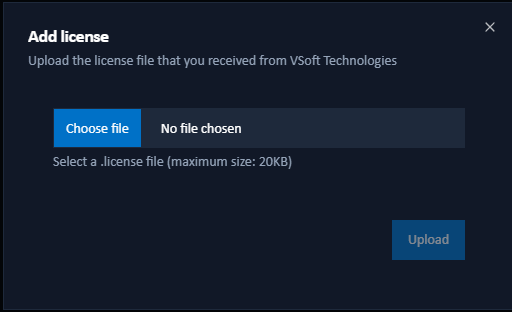
- Click the Add a license button.
- In the dialog that appears, browse for a local
.licensefile. - Click Upload to add the selected license file to the server.
Once successfully uploaded, the new license will appear in the licenses table.
Deleting a License
To remove a license from the system:
- Click the Delete button next to the license entry you wish to remove.
- Confirm the deletion to permanently remove the license from the list.