Options
The Options Settings tab enables administrators to configure general server options for Signotaur. The settings are grouped into update checks, login session lifetimes, signing and API-key security, and the gRPC API rate limit.
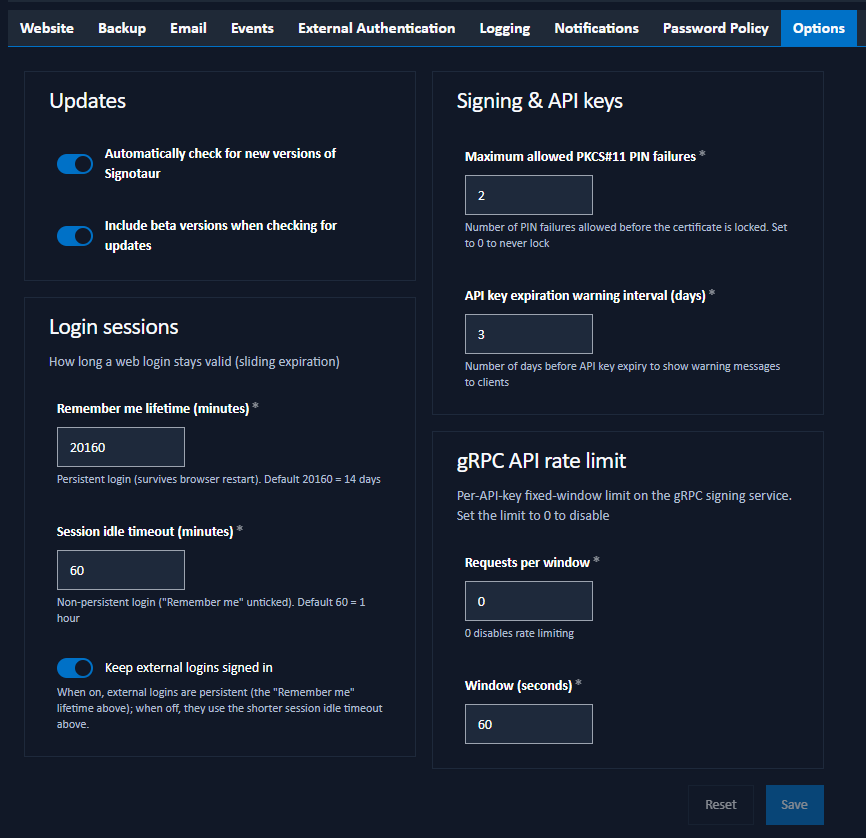
Updates
Automatically check for new versions of Signotaur: Enable automatic checking for Signotaur updates. When enabled, the server will periodically check for new versions and notify administrators when updates are available.
Include beta versions when checking for updates: Display beta/pre-release versions when checking for updates. This option is only visible when Automatically check for new versions of Signotaur is enabled. Enable this if you want to test new features before they are officially released.
Login Sessions
Controls how long a web UI login stays valid. Sessions use sliding expiration, so each request extends the window — an actively-used session does not expire mid-use. The Remember me checkbox on the login page chooses between the two lifetimes below.
Remember Me Lifetime (Minutes): The lifetime of a persistent login, used when Remember me is ticked. The cookie is written to disk and survives a browser restart. The default is 20160 minutes (14 days).
Session Idle Timeout (Minutes): The idle timeout for a non-persistent login, used when Remember me is left unticked. The cookie is cleared when the browser closes, and the session also expires after this much inactivity. The default is 60 minutes (1 hour).
Keep external (OAuth) logins signed in: A deployment-wide toggle for external-provider (Google, GitHub) session persistence. When off (the default), external logins are session-only and use the Session Idle Timeout above — recommended for a privileged system such as a code-signing server. When on, external logins are persistent and use the Remember Me Lifetime. The administrator sets this policy for the whole deployment.
Any session without Remember me uses the shorter session idle timeout. All three settings apply immediately to new sign-ins without a service restart.
Signing & API Keys
Maximum Allowed PKCS#11 PIN Failures: The maximum number of consecutive incorrect PIN attempts allowed before the server locks access to a certificate on a PKCS#11 hardware token (such as a YubiKey or other HSM device). This prevents further PIN attempts via the server that could cause the hardware token itself to lock out.
When this limit is reached, the server will block access to the certificate, protecting the hardware token from being locked due to repeated failed PIN attempts. The hardware token itself is not locked by this setting - only server access to the certificate is blocked.
Set this value to be less than the PIN retry limit configured on your hardware tokens to ensure the server blocks access before the token locks itself. A value of zero means that the server will never lock certificate access due to PIN failures, though the hardware token itself may still enforce its own limits.
The valid range is 0 to 100.
API Key Expiration Warning Interval (Days): The number of days before an API key expires that the server will include a warning message in responses to clients using that key. This gives users advance notice to rotate their API keys before they expire.
The valid range is 1 to 365. The default is 3 days.
gRPC API Rate Limit
Configures a per-API-key fixed-window rate limit on the gRPC signing service. Each API key is throttled independently. When the limit is exceeded, signing requests are rejected with a ResourceExhausted gRPC status until the window rolls over.
Requests per window: The maximum number of signing requests allowed per API key within the configured window. Set to 0 to disable rate limiting. The default is 0 (disabled).
Window (seconds): The duration of the fixed window, in seconds. The default is 60.
The rate-limiter partitions snapshot the configuration when they are created, so changes to these values take effect after a service restart. Toggling the limit on or off via the Requests per window value, however, is observed per-request without a restart.
Saving Changes
After configuring the options, click Save to save the changes. A confirmation dialog will appear to confirm the action.
Note that changes to these options take effect immediately.