Two-Factor Authentication
The Two-Factor Authentication (2FA) page in the Profile section of Signotaur enhances account security by enabling you to configure, enable, and manage 2FA using an authenticator app and recovery codes.
The 2FA page allows you to:
- Link an authenticator app to generate time-based one-time passwords (TOTPs).
- Enable or disable 2FA for added security.
- Reset recovery codes or the authenticator key if needed.
- Require 2FA on the next login by forgetting the current browser session.
The page displays the status of the authenticator app, whether 2FA is enabled, and, if the count is low, the number of available recovery codes, prompting you to regenerate them.
Setting Up 2FA
When you first navigate to the Two-Factor Authentication page, a New Authenticator App button is shown.
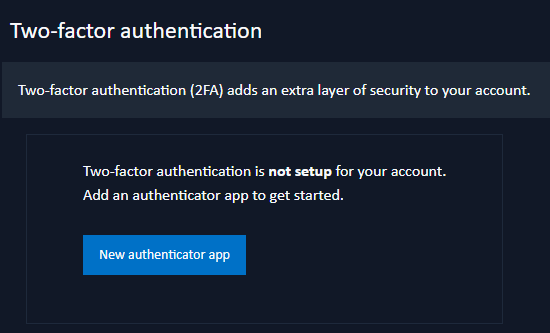
Clicking this directs you to a Configure Authenticator App page. This page displays a QR code and a key that can be entered into a two-factor authenticator app.
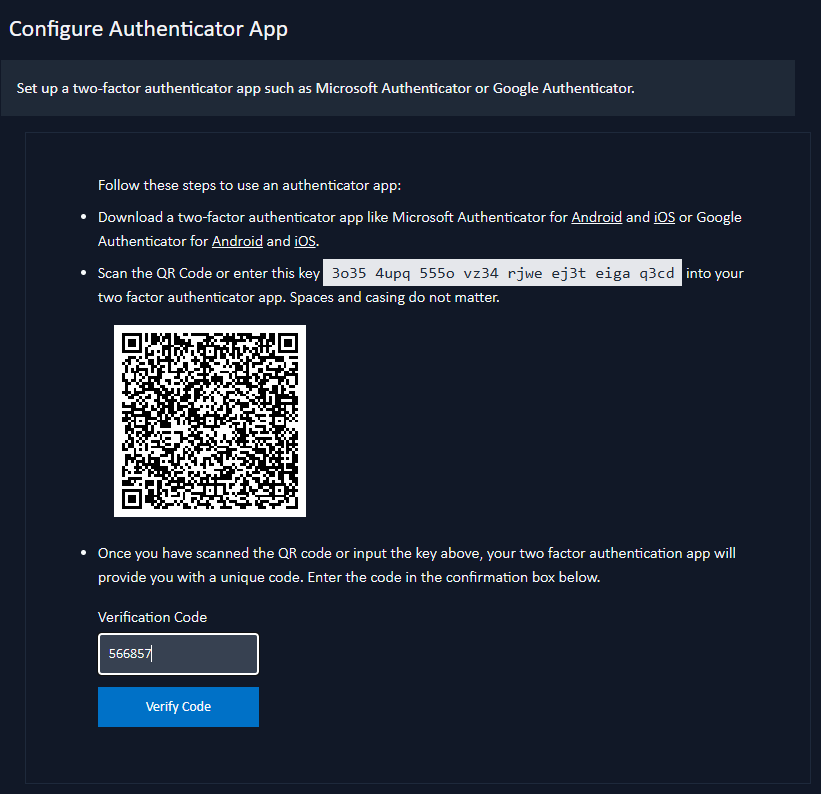
Download a two-factor authenticator app like Microsoft Authenticator for Android and iOS, or Google Authenticator for Android and iOS.
You can either scan the QR code or manually enter the key into the authenticator app. The key’s spaces and casing do not matter. Once the app is set up, it will generate a unique code.
Verifying the Authenticator App
To verify the authenticator app, you should enter the code generated by the app into the Verification Code input box and click the Verify Code button. After the verification, you will be redirected to a page containing a list of recovery codes.
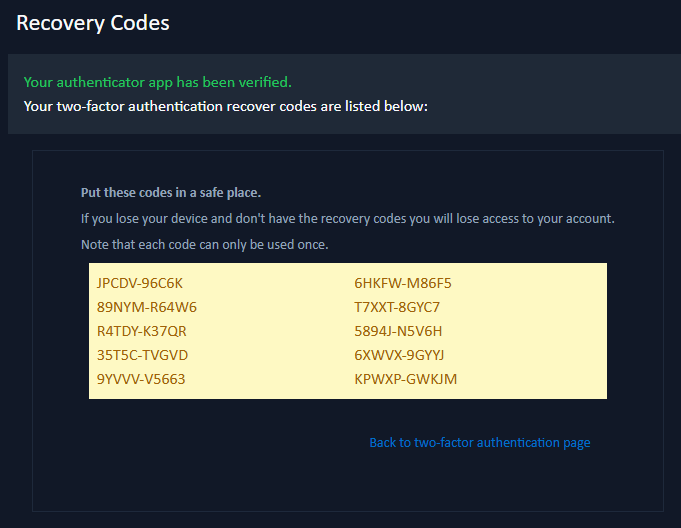
These recovery codes should be stored in a safe place. If the device with the authenticator app is lost, the recovery codes are the only way to access the account. Each code can be used once. The recovery codes page includes a link back to the 2FA page.
Confirming It Is You
Once two-factor authentication is switched on, opening the Configure Authenticator App page asks you to confirm your identity before the authenticator key is shown. This stops someone who finds an unattended signed-in browser from copying the key into an app of their own.
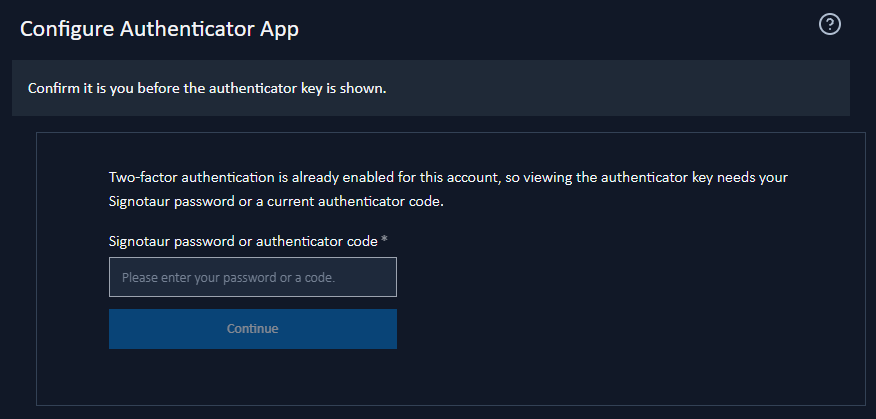
Enter either your Signotaur password or a current code from your authenticator app, then click Continue. Either one is enough, because someone moving to a replacement phone has no working code, and an account that signs in through Google or GitHub has no Signotaur password.
An account with no Signotaur password is asked for a code only. A password from the external provider will not work here.
Available Actions
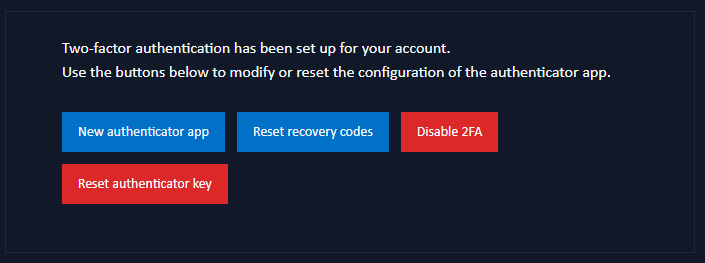
The Two-Factor Authentication page has buttons for the following actions:
New Authenticator App
- Sets up a new authenticator app, as described above.
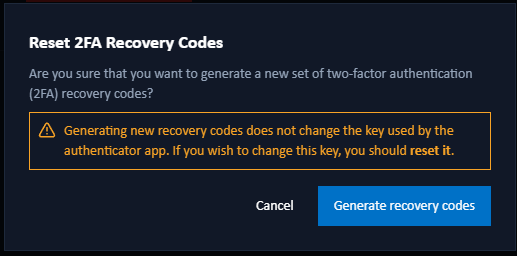
Reset Recovery Codes
- Generates a new set of recovery codes. It’s recommended to regenerate codes when only a few remain, or if you’ve used most of them.
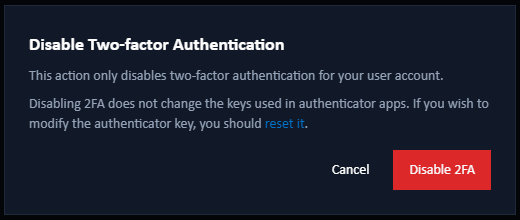
Disable 2FA
- Disables two-factor authentication. After disabling, you will only need you primary credentials (e.g. username and password) to log in. Disabling 2FA does not change the keys used in authenticator apps. To modify the authenticator key, reset it instead.
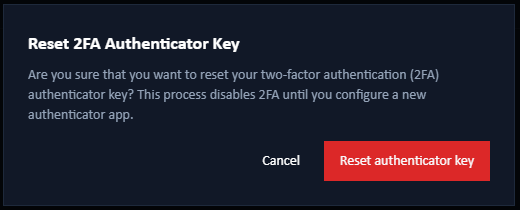
Reset Authenticator Key
- Resets the authenticator key, unlinking the current authenticator app. A new app must be configured to continue using 2FA. A confirmation dialog will appear before proceeding.
Conditional Actions
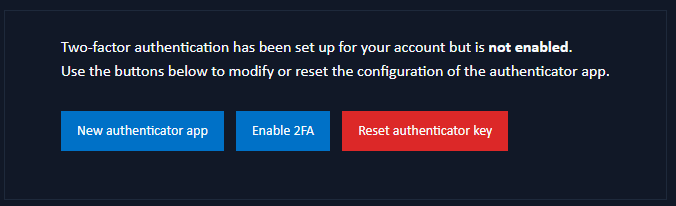
Depending on the 2FA status, the following buttons may also appear:
Forget This Browser
- This button is shown if you have chosen to remember 2FA login on the current browser. Clicking this will remove the browser’s session, requiring 2FA on the next login from this device.
Enable 2FA
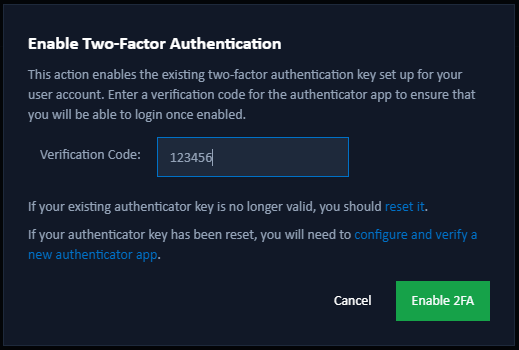
- This button is shown if 2FA is disabled. Clicking it will display a dialog for enabling 2FA. You must enter a verification code from the existing authenticator app before clicking the Enable 2FA button. If the existing authenticator key is no longer valid or has been reset, links are provided to the Reset Authenticator Key dialog and the Configure Authenticator App page.
Email Notifications
Signotaur emails you whenever two-factor authentication on your account changes, so that a change you did not make does not go unnoticed. A message is sent when 2FA is turned on or off, when the authenticator key is reset or displayed, and when new recovery codes are generated.
No message is sent if no mail server is configured. The attempt is recorded in the log. See Email Settings.