Change Password
The Change Password page in the Profile section of Signotaur allows you to update your account password.
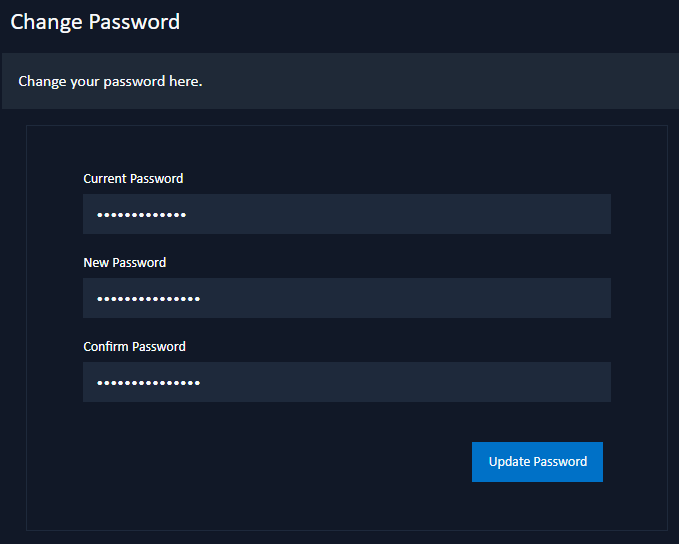
Current Password
Enter your current password in this field to authenticate the request.New Password
Enter your new desired password in this field. The new password must meet the password policy requirements.By default, the password policy requires a minimum length of 8 characters and must contain at least one lowercase letter, one uppercase letter, and one digit. Administrators can change this on the Password Policy Settings page or by editing the server configuration file.
Confirm Password
Re-enter your new password to confirm it matches the New Password field.Update Password
After filling in the fields, click the Update Password button to save the changes.
Once you click the Update Password button, the system will validate your current password and the new password fields. If both passwords match and meet the security requirements, your password will be updated successfully. This process ensures that only the account owner can update their password.
Temporary and Expiring Passwords
Passwords issued by an administrator are temporary and expire. While one is active, a warning above the form shows the time remaining. The warning disappears as soon as you change the password.
Passwords you choose yourself do not expire.
Setting a Password
Accounts that sign in only through Google or GitHub have no Signotaur password. For these accounts, this page shows Set Password instead: enter the new password twice and click Set password.
A password is not required to use the account, but setting one lets you sign in without the external provider and allows you to unlink the last external login. See Manage External Logins.