Configuration
The Configuration tab of the Web Certificate page selects how Signotaur obtains the TLS certificate for its web server.
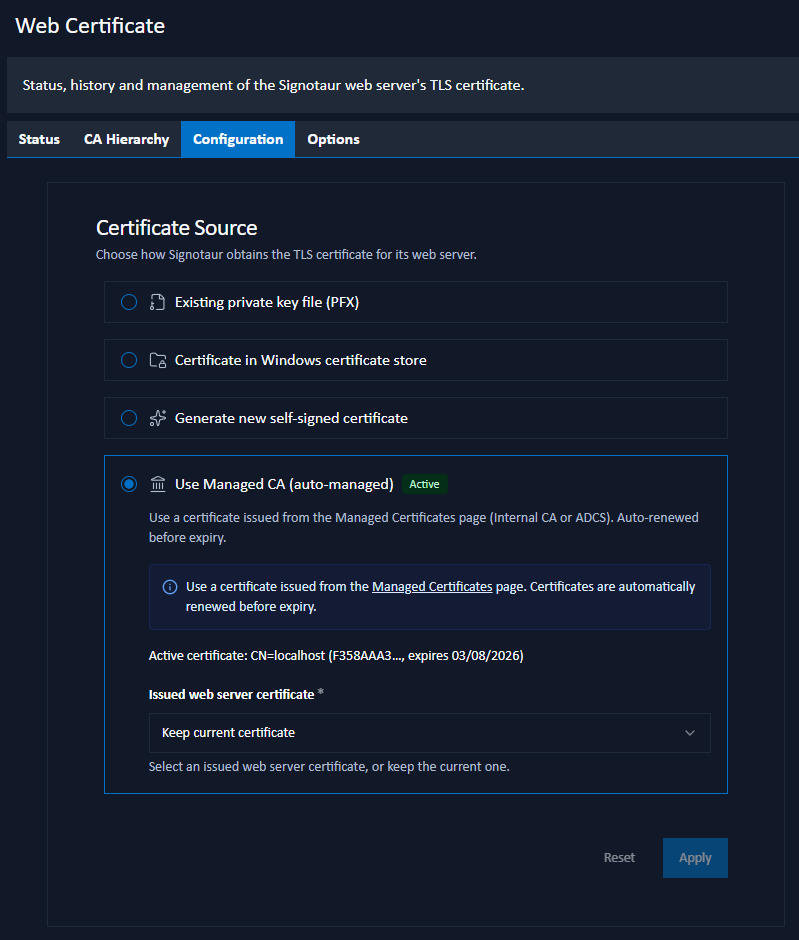
Certificate Source
Choose one of four modes. The mode currently in use is marked Active; selecting a mode expands its settings.
Existing Private Key File (PFX)
Use an existing PKCS#12 file on disk. Renewal and rotation are manual.
- PFX file path: the absolute path to a
.pfxfile the Signotaur service can read. - Password: the PFX password. When a password is already stored, leave this blank to keep it.
Certificate in Windows Certificate Store
Use a certificate already installed in the Windows certificate store. Windows only.
- Store location: System store (LocalMachine) or User store (CurrentUser).
- Store name: the store to search.
- Subject: the distinguished name (or common name) of the certificate to use.
Generate New Self-Signed Certificate
Generate a self-signed certificate on the fly. Suitable for local or test use; clients must be told to trust it.
- Subject: the common name and first SAN for the generated certificate.
- Friendly name: the display name shown in the Windows certificate store.
- Password: leave blank to auto-generate a random password.
Use Managed CA (Auto-Managed)
Use a certificate issued from the Managed Certificates page (by the Internal CA or by ADCS) and have Signotaur renew it automatically before expiry.
- Issued web server certificate: select an issued web-server certificate, or keep the current one. Issue certificates from the Managed Certificates page if none are listed.
This is the recommended mode: the certificate is renewed automatically and applied to the running server without a restart. See Web Certificate Loading.
Use Managed CA requires an Enterprise license. Without one, the radio option is disabled. See Editions & Licensing.
The One-Time 90-Day Grace Certificate
If you select a Managed CA web-certificate mode without an Enterprise license, Signotaur issues a single managed web certificate, valid for up to 90 days and with no automatic renewal. This applies on a fresh install, and on the first v1-to-v2 upgrade that enables Managed CA. When that certificate expires while the server is still unlicensed, Signotaur automatically reverts the web certificate to a self-signed certificate. This happens in memory, leaving the configuration unchanged, with no administrator action required.
This grace is one-time per server and cannot be reset: once a managed web certificate has ever been issued, reconfiguring a Managed CA mode while unlicensed is blocked. Add an Enterprise license to keep using Managed CA. See Editions & Licensing.
Applying a Change
Switching from the auto-managed mode to any manual mode (PFX file, Windows store, or self-signed) disables automatic renewal; the dialog warns you when this applies.
Click Apply to save the change. A confirmation dialog summarises the change before it is applied.
A certificate-source change is written to disk but takes effect only when the Signotaur service is restarted. The page shows a restart-pending notice until the service is restarted.