Add Managed Certificate
The Managed tab in the Register Certificate dialog enables administrators to register a code-signing or document-signing certificate that Signotaur has already issued through its certificate management system, either from the Internal CA or from ADCS. Registering a managed certificate is what makes it available for signing operations and user assignment.
The tab is shown only when certificate management is enabled.
Registering a managed certificate requires an Enterprise licence. See Editions & Licensing.
The certificate must be issued first. Issue a new code-signing or document-signing certificate from the Managed Certificates page; it then appears on the Managed tab ready to register.
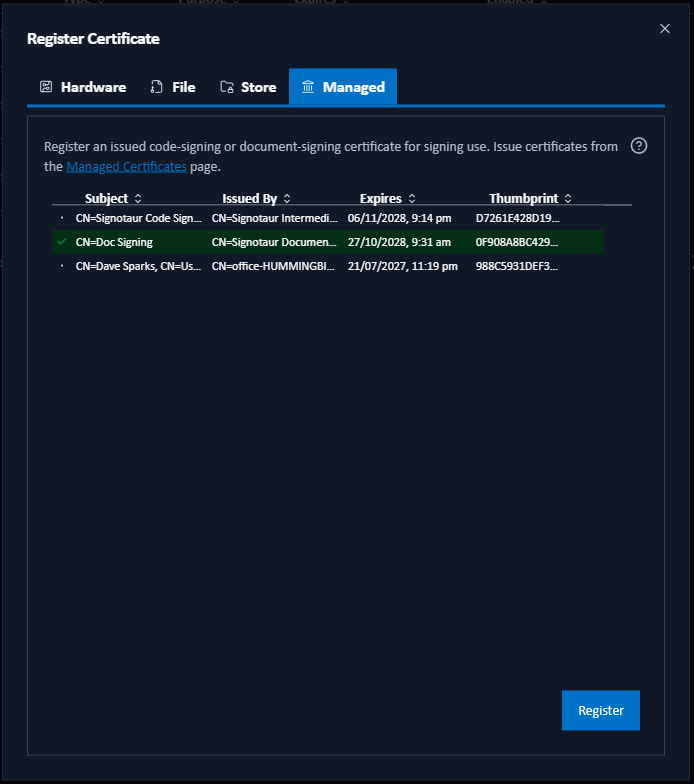
Registering a Certificate
The tab lists code-signing and document-signing certificate that Signotaur has issued but that is not yet registered for signing:
| Column | Description |
|---|---|
| Subject | The certificate's subject distinguished name. |
| Issued By | The certificate that signed it. Hover for the issuance date and time. |
| Expires | The certificate's expiry date. Hover for the time remaining. |
| Thumbprint | The SHA-1 thumbprint, truncated; hover for the full value. |
- Select a certificate by clicking its row. The selected row is highlighted; only one certificate can be registered at a time.
- Click Register.
The certificate then appears in the main Certificates table with Internal CA or ADCS in the Type column, and is available for assignment to users.
If the list is empty, every issued code-signing and document-signing certificate is already registered, or none has been issued yet. Issue a new one from the Managed Certificates page. Note that only current certificates are listed, not those that have been replaced by a renewal.
Automatic Renewal
Once registered, a managed certificate is renewed automatically before it expires. The new certificate replaces the existing registration while retaining its label and user assignments, so build scripts that select it by label continue to work unchanged. See Renewal and Retention for details of the certificate lifecycle, including when the replaced registration is automatically unregistered.