External Authentication Settings
The External Authentication tab allows administrators to enable external authentication providers for user login. Two options are available: GitHub and Google. For each provider, a Client ID and Client Secret are required. Once either provider is enabled, the tab also controls who may request an account.
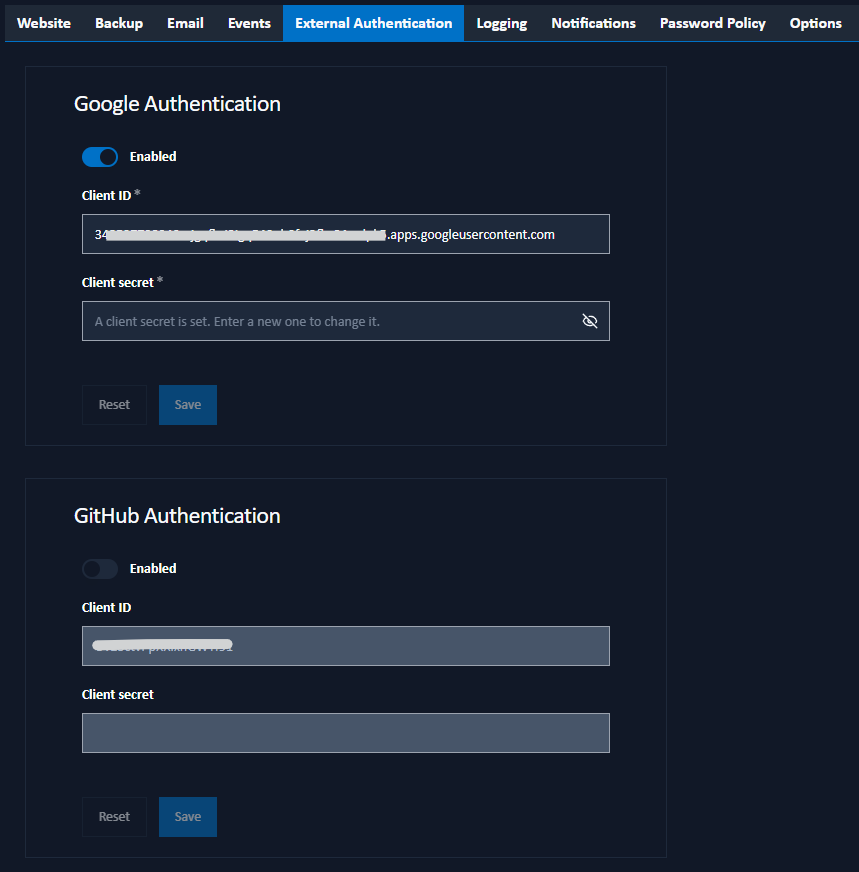
Enabling a provider does not by itself grant anyone access. Someone signing in with Google or GitHub who has no account creates a request, which an administrator approves on the Users page.
GitHub Authentication
To set up GitHub as an authentication provider:
- Visit your GitHub Developer Settings under your profile.
- Select OAuth Apps and create a new OAuth app.
- Enter the following details (replacing
https://hostname:90with your actual Signotaur URL):- Application Name: e.g., "Signotaur"
- Homepage URL: e.g.,
https://hostname:90. - Authorization Callback URL: e.g.,
https://hostname:90/oauth-github.
- Click Register Application and make a copy of the Client ID.
- Click Generate a new client secret and make a copy of the Client Secret.
- Toggle the Enabled switch on the GitHub Authentication form in Signotaur, and copy the Client ID and Client Secret from GitHub and paste them into the corresponding fields.
- Click Save to save the GitHub authentication settings.
Google Authentication
To set up Google as an authentication provider:
- Go to the Google APIs Console.
- Create or select a Google APIs project, then navigate to Credentials.
- Click Create Credentials and select OAuth client ID.
- For Application type, choose "Web application" and enter the following (replacing
https://hostname:90with your actual Signotaur URL):- Name: e.g., "Signotaur Server".
- Authorized JavaScript Origins: e.g.,
https://hostname:90. - Authorized Redirect URIs: e.g.,
https://hostname:90/oauth-google.
- Click Create and make a copy of the Client ID and Client Secret.
- Toggle the Enabled switch on the Google Authentication form in Signotaur, and copy the Client ID and Client Secret from Google and paste them into the corresponding fields.
- Click Save to save the Google authentication settings.
Changes to the provider settings above require restarting the Signotaur service to take effect. The Account Requests settings below apply immediately.
Account Requests
The Account Requests card is shown whenever at least one external authentication provider is enabled. It controls who may request a new account.
A request does not grant access. It creates an account that remains unusable until an administrator approves it on the Users page.
Refuse new registrations
Turn this on to prevent anyone from requesting a new account. Existing users can still sign in normally.
While registrations are refused, the domain list is hidden because it has no effect. Any configured domains are preserved and reappear if registrations are enabled again.
Domains that may request an account
Use this list to restrict requests to particular email domains. Enter a domain such as example.com and click Add. Click the cross on a domain to remove it.
The domain is checked against the email address that the authentication provider has verified, rather than the email address entered by the requester.
An empty domain list allows requests from any domain. To prevent all new requests, turn on Refuse new registrations.
Every permitted request still requires administrator approval.
If you remove the last domain while registrations are enabled, the save confirmation warns that requests will then be allowed from any domain.
What the Requester Sees
Someone who signs in with a provider and has no account is shown a Request an account page. They enter a username and email address, then click Request account.
They are then told that the registration is waiting for approval, and that they can sign in with the same provider once it is approved. They are emailed when that happens.
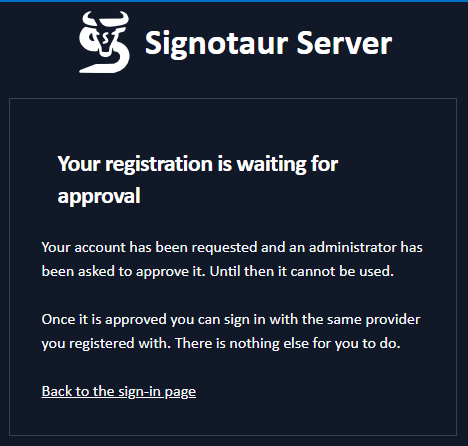
If new registrations are refused, or their domain is not in the list, they are told instead that an account cannot be created here and to contact their administrator.