Public Distribution
Public Distribution copies the Internal CA's CRL and issuer certificate to an external location, so signatures made with Internal CA certificates can be validated from outside your network.
It is optional. A deployment whose certificates are only ever validated on your own network does not need it: the Validation Authority already serves everything locally.
When You Need It
Use Public Distribution when a signed file leaves your network and the recipient has to check that the signing certificate was not revoked. That is common with document signing: a signed PDF sent to a customer, auditor or regulator is validated on a machine that cannot reach your LAN.
Two things are copied, and nothing else:
- the CRL, the signed list of revoked certificates;
- the issuer certificate, so a validator can complete the chain.
No private key is ever copied. The OCSP responder stays on your local network. The destination holds two public, signed files, so it needs no credentials of its own and does not have to be trusted the way a CA does.
Enabling It
- Open Managed Certificates → Internal CA → Validation Authority.
- Set a Public base URL. This is the address where the copied files will be readable from outside, for example
https://pki.example.com. Enter the address only, without a/pkipath. It is written into every certificate issued while it is set, so choose a stable hostname. - Turn on Publish to an external destination. The Public Dist sub-tab becomes available. Until this is on, that sub-tab is visible but dimmed, with a tooltip explaining why.
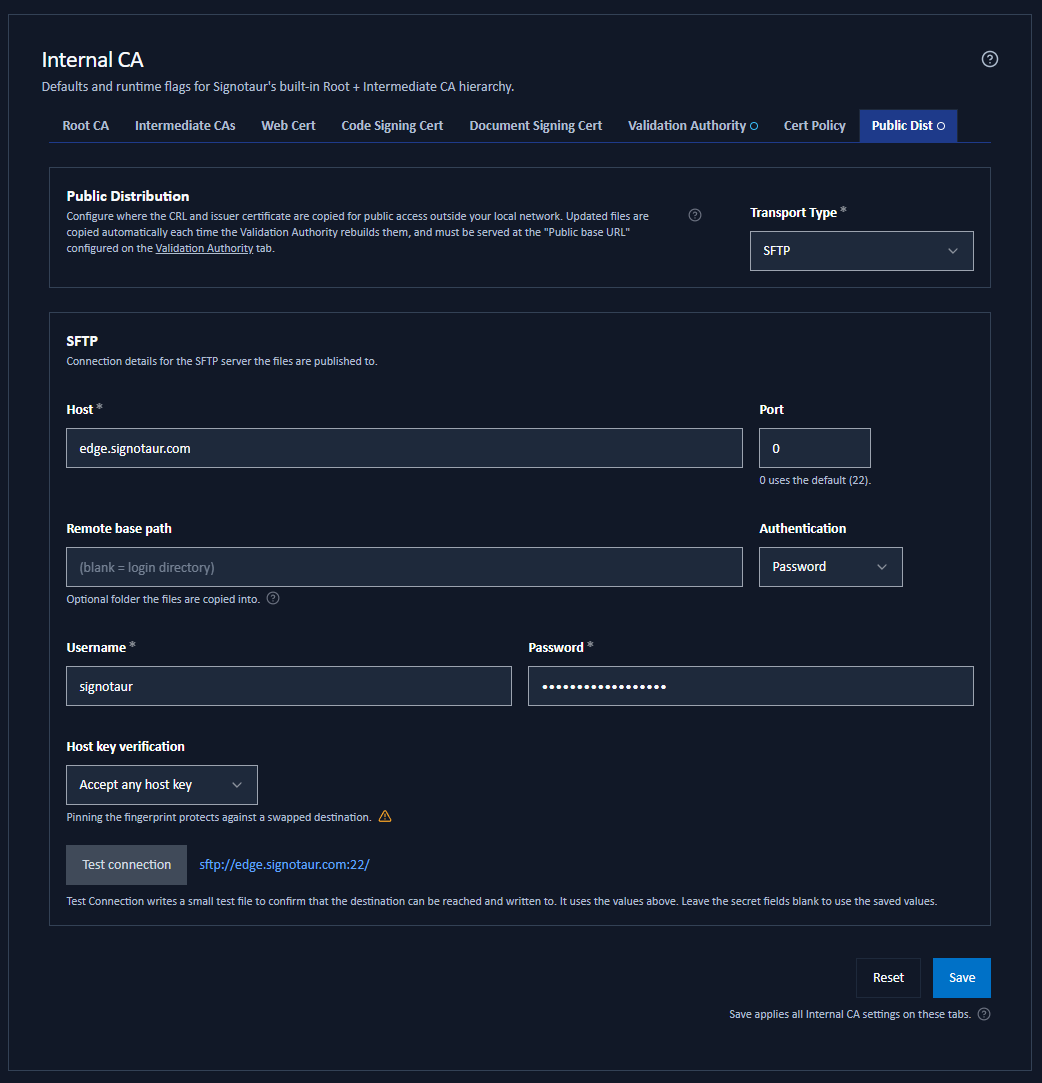
- Open the Public Dist sub-tab, choose a Transport Type, and fill in the connection details.
- Click Test connection, then Save.
Saving copies the current files immediately, and every later update is copied automatically.
The Public base URL on the Validation Authority tab says where validators will read the files. This page says where Signotaur writes them. Signotaur cannot check that the two line up, so you must make sure whatever you configure here is actually served at that URL. Any remote base path or key prefix you set below must be reflected in the public URL.
You can also set a Public base URL and leave publishing off. That is a supported setup in which you copy the files yourself, and the Validation Authority tab shows an advisory reminding you that a fresh CRL must be published before the current one expires.
Choosing a Transport
| Transport | Notes |
|---|---|
| SFTP | The default. File transfer over SSH. Supports password or private-key authentication and host-key pinning. |
| FTP | Plain FTP. Credentials travel in clear text, so prefer FTPS or SFTP. |
| FTPS (explicit) | FTP that upgrades the control channel to TLS. |
| FTPS (implicit) | FTP that is under TLS from the moment it connects, usually on port 990. |
| WebDAV | HTTPS only. Useful where the public files are already served by a web server. |
| S3-compatible object storage | AWS S3, MinIO, Cloudflare R2, Wasabi, Backblaze B2, DigitalOcean Spaces and similar, optionally behind a CDN. |
Only one transport is active at a time, and only its own fields are shown.
Where the Files Land
Signotaur writes the same path layout the public URL uses:
{remote base path or key prefix}/pki/crl/{hash}.crl
{remote base path or key prefix}/pki/ca/{hash}.cer
The /pki/crl/ and /pki/ca/ parts are added for you. Do not include pki in the base path or key prefix, or the path doubles to pki/pki/crl/…. The fields warn you if you do.
SFTP, FTP and FTPS Settings
| Field | Required | Notes |
|---|---|---|
| Host | Yes | The destination host name or IP address. |
| Port | No | 0 uses the transport default: 22 for SFTP, 21 for FTP and FTPS (explicit), 990 for FTPS (implicit). |
| Remote base path | No | The folder the files are copied into. Blank uses the login directory. |
| Authentication | SFTP only | Password or Private key. FTP and FTPS always use a password. |
| Username | Yes | The login user name. Required for every one of these transports, including SFTP key authentication, where it names the account the key authenticates. See below. |
| Password | Conditional | Required unless a password is already stored, or SFTP key authentication is selected. |
| Private key | SFTP key auth | The SSH private key, pasted in PEM or OpenSSH format. |
| Private key passphrase | No | Only if the key is protected by one. |
| Host key verification | SFTP only | Accept any host key (the default) or Pin a fingerprint. |
| Host key fingerprint | When pinning | The expected fingerprint, in SHA256:… form. |
| TLS certificate verification | FTPS only | Use the system trust store (the default) or Accept any certificate. |
Neither protocol family has a blank-username mode. SSH has no anonymous concept at all, and FTP expects the literal user name anonymous. An empty field sends an empty login argument, which the server rejects as a syntax error.
For anonymous FTP, enter anonymous as the user name; the dialog notes this beneath the field on FTP and FTPS. The same rule is applied when publishing, so a configuration file edited by hand is refused with an error naming the transport rather than failing later at the destination.
WebDAV Settings
WebDAV is HTTPS only; there is no cleartext option.
| Field | Required | Notes |
|---|---|---|
| Host | Yes | The WebDAV host name or IP address. |
| Port | No | 0 uses 443. |
| Remote base path | No | The collection the files are copied into. Blank uses the server root. |
| Username | No | Leave blank, along with the password, to publish without authenticating. Required once a password is set. |
| Password | No | Required once a user name is set. |
| TLS certificate verification | No | Use the system trust store (the default) or Accept any certificate. |
Unlike the file-transfer transports, WebDAV credentials are optional but all or nothing. Leave both blank to publish without authenticating, which some destinations allow because their WebDAV module has no authentication of its own. Otherwise set both. Filling in one and not the other is refused, because half a credential pair is always a mistake.
S3-Compatible Object Storage Settings
| Field | Required | Notes |
|---|---|---|
| Bucket name | Yes | The bucket the files are written to. |
| Region | For AWS | For example eu-west-1. The field suggests common AWS regions but accepts any value. Optional when a Service URL is set; if left blank, the service's default region is used. |
| Access key ID | Yes | The access key. |
| Secret access key | Yes | Stored encrypted. |
| Service URL | No | Leave blank for AWS. For MinIO, Cloudflare R2, Wasabi and similar, enter the full endpoint including https://, for example https://minio.example.com:9000. Enter the endpoint only, with no bucket name or path. |
| Key prefix | No | An optional folder path prepended to every uploaded file. Blank writes to the bucket root. |
| Cache control | No | Default public, max-age=3600. Sets the Cache-Control header on the uploaded files. Keep it shorter than the CRL rebuild interval so a cached copy cannot hide new revocations. Blank sends no header, and a CDN then applies its own guesswork, so an explicit value is recommended. |
| Use path-style addressing | No | Off by default. Turn it on for self-hosted S3-compatible servers such as MinIO and Ceph, which usually cannot serve the bucket-as-hostname form. AWS uses the default. |
Stored Secrets
Passwords, private keys, passphrases and secret access keys are stored encrypted and are never sent back to the browser. Once one is stored, its field shows (set — leave blank to keep) and a masked placeholder. Leave it blank to keep the stored value, or type a new value to replace it.
Testing the Connection
Test connection uses the values currently on the form, falling back to the stored secrets for any field left blank. It connects, writes a small throwaway file to prove the destination is reachable and writable, then removes it. You do not have to save first.
Beside the button, Signotaur shows the destination address it has assembled from the fields, so you can check it before testing.
When Publishing Happens
There is no manual publish button. The files are copied:
- on each scheduled CRL rebuild (the interval is set on the Validation Authority sub-tab);
- immediately after a certificate is revoked;
- when the issuer certificate changes;
- when you save this configuration.
If a copy fails, the local files remain authoritative and Signotaur retries on the next rebuild cycle.
Security Notes
The copied files are signed by the CA, which shapes the whole threat model. Someone who intercepts or takes over the destination can serve stale or corrupt files, which stops validators getting fresh revocation data. They cannot forge a revocation, or un-revoke a certificate, because they cannot produce the CA's signature. The realistic risk is a denial of service, not a forgery.
With that in mind:
- Avoid plain FTP. It sends the credentials for your destination in clear text. Use SFTP or FTPS.
- Pin the SFTP host key where you can. The default, Accept any host key, trusts whatever the server presents and is acceptable on a trusted network, but pinning closes the stale-file gap.
- Leave TLS verification on the system trust store. Accept any certificate drops protection against an impostor intercepting the connection and the credentials you send to it. Use it only on a trusted network with a self-signed endpoint.
- Keep the cache lifetime short relative to the CRL rebuild interval, so a CDN cannot serve an out-of-date CRL long after a revocation.
Prerequisites and Permissions
- A Public base URL must be set on the Validation Authority sub-tab, and Include validation addresses in new certificates must be on when the certificates are issued. Otherwise the files are published but nothing points at them.
- All settings apply live; no restart is required.