Email Settings
The Email Settings page in the Profile section enables you to view, verify, or update your email address, and manage your notification preferences.
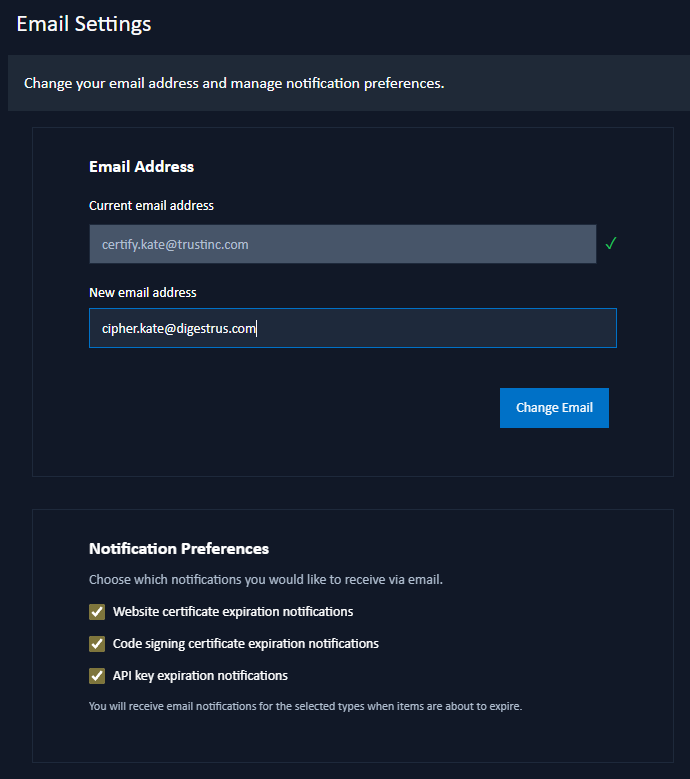
Email Address
Current Email Address Displays your current email address. If the email is verified, a green tick icon appears next to it.
Email Verification If the email address has not been verified, a Send Verification Email link is displayed. Clicking this link will send a verification email to the current address. Email verification is required to receive notifications.
An administrator can also send this message for you from the Users page, so one may arrive without your asking.
Changing Email Address To change the email address, enter a new address in the New Email Address field and click the Change Email button. A confirmation dialog will appear. After clicking the Continue button, an email will be sent to the current address with a link to confirm the change.
Notification Preferences
You can choose which types of email notifications you would like to receive:
API Key Expiration Notifications (All users) Receive email notifications when your API keys are approaching expiration or have expired.
Website Certificate Expiration Notifications (Administrators only) Receive email notifications when website certificates are approaching expiration or have expired.
Code-Signing Certificate Expiration Notifications (Administrators only) Receive email notifications when code-signing certificates are approaching expiration or have expired.
CA Certificate Expiration Notifications (Root and Intermediate) (Administrators only, Enterprise only) Receive email notifications when the Internal CA's Root or Intermediate certificates are approaching expiration or have expired. See Certificate Management.
Pending Registration Approval Notifications (Administrators only) Receive an email whenever someone signs in with an external provider and asks for an account, so that it can be approved or refused on the Users page. Turning this off affects only your own mailbox — the other administrators still receive it.
If an administrator has disabled a notification type in the server notification settings, it will appear as "(disabled by administrator)" and cannot be enabled by individual users.
Pending registration notifications instead show "(external registration is disabled)" when Refuse new registrations is turned on in the external authentication settings, because no such email can be raised at all in that state.
If a notification type is disabled in the server notification settings, it is marked (disabled by administrator) and individual users cannot enable it.
Pending registration notifications are marked (external registration is disabled) when Refuse new registrations is enabled in the external authentication settings.