My Certificates
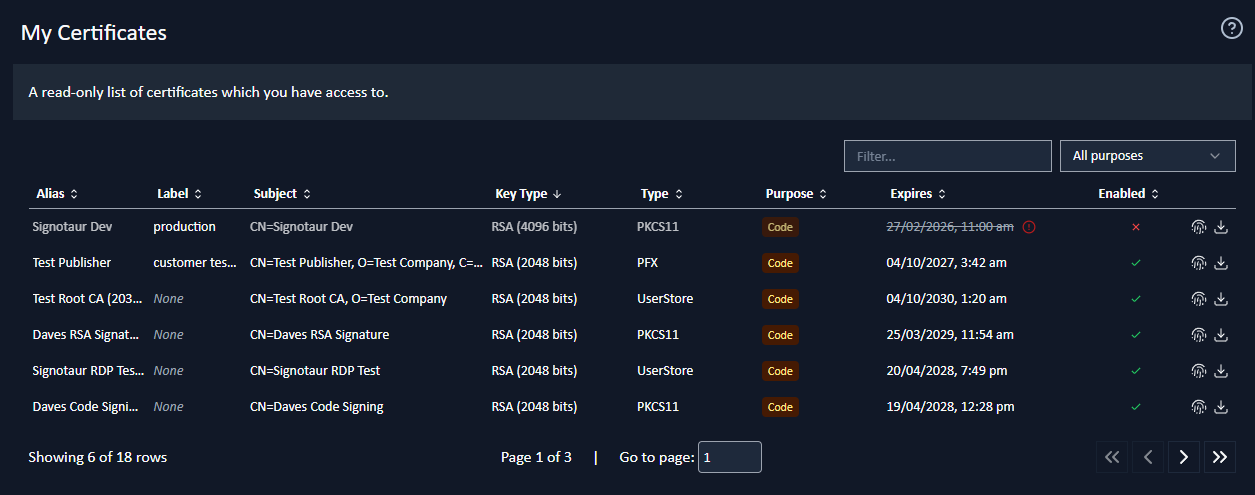
The My Certificates page in the Profile section of Signotaur allows you to view a list of certificates which are assigned to you.
The Certificate Table
The table is sortable and filterable, and can be searched by alias or subject. Its columns are the same as on the admin Signing Certificates page.
- Alias: the certificate's descriptive name, which is how you identify it when signing. An amber clock icon beside the alias marks a replaced registration; see Replaced Certificates below.
- Label: an optional grouping label, or None when the certificate has none. An orange warning triangle means more than one active certificate shares the label; see Duplicate Labels below.
- Subject: the certificate's subject.
- Key Type: the certificate's public-key algorithm and size, for example
RSA (3072 bits). - Type: where the certificate came from, or how it is stored; see The Type Column below.
- Purpose: what the certificate may sign; see Certificate Purpose below.
- Expires: the expiry date, colour-coded as expiry approaches; see Expiry Warnings below.
- Enabled: whether the certificate is currently available for signing; see Enabled and Locked Certificates below.
Each row ends with two buttons: Show thumbprint, covered in Viewing a Thumbprint, and Download public certificate, covered in Downloading the Public Certificate.
The Type Column
For a certificate Signotaur issued and manages, this column shows the issuing source, Internal CA or ADCS, with a landmark icon beside it. These certificates are renewed automatically before they expire.
For any other certificate it shows how the certificate is stored on the server: PFX for an uploaded file, PKCS11 for a hardware token or HSM, and UserStore or SystemStore for the Windows certificate store. A managed certificate is stored as a PFX too, so the source is shown in preference to the storage kind.
Expiry Warnings
The Expires date changes colour as expiry approaches, and hovering shows the remaining time in words.
| Time to expiry | How it appears |
|---|---|
| More than 21 days | Plain text |
| 21 days or fewer | Amber, with a warning triangle |
| 10 days or fewer | Orange, with a warning triangle |
| 4 days or fewer | Red, with a warning circle |
| Already expired | Struck through and greyed, with a red warning circle |
Expired entries are dimmed and cannot be used for signing. Ask an administrator to renew or replace one.
Enabled and Locked Certificates
Enabled is read-only on this page: a green tick means the certificate is available for signing, and a red cross means it is not. Only an administrator can change it.
A red padlock beside the tick means signing has been blocked because an invalid or expired PIN was used, which stops a hardware token being locked out for good. Hovering shows how many times it happened. An administrator has to update the password before the certificate can be used again.
Replaced Certificates
An amber clock icon beside the alias means the managed certificate behind your registration has been renewed, so your registration points at a superseded certificate. Hovering explains what to do:
Replaced — the underlying managed certificate has been renewed. Ask an administrator to register the replacement so you can keep signing with a current certificate.
Where automatic cleanup is enabled, the same tooltip also gives the date this registration will be disabled and then deleted. An administrator controls the schedule; see Renewal and Retention.
Duplicate Labels
An orange warning triangle beside a label means more than one active certificate shares it. Signing by that label still works: Signotaur uses the enabled, unexpired certificate with the latest expiry date. The warning matters because which certificate that is can change as certificates are renewed. Hovering shows:
Warning: Multiple active certificates share this label. Ask an administrator to update the label or disable other certificates to remove this warning.
Certificate Purpose
Each certificate shows a Purpose column with one small badge per purpose, Code for code signing and Doc for document signing. Hovering shows the full names. A Filter by certificate purpose control above the table narrows the list to All purposes, Code Signing or Document Signing.
The badges and the filter read exactly as they do on the admin Signing Certificates page.
The Purpose column and the purpose filter appear only when the server has an Enterprise licence, which is what permits document signing. On a Standard server every certificate is a code-signing one, so the column is omitted. See Editions & Licensing.
Viewing a Thumbprint
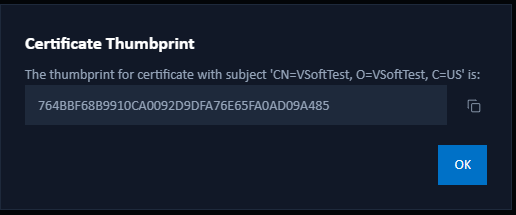
To view a certificate's thumbprint, click Show Thumbprint next to its entry. A dialog will open where you can view and copy the thumbprint.
Downloading the Public Certificate
 To download a certificate's public key, click the Download button next to its entry. The Download Certificate dialog opens and lists every element of the certificate's chain: the leaf certificate, each intermediate CA (numbered Intermediate CA, Intermediate CA 2… when more than one is present), and the root CA. Each element has its own card showing the subject, thumbprint, and expiry, with two download buttons: Download PEM (Base64 text, saved as
 .crt) and Download DER (binary, saved as .cer).
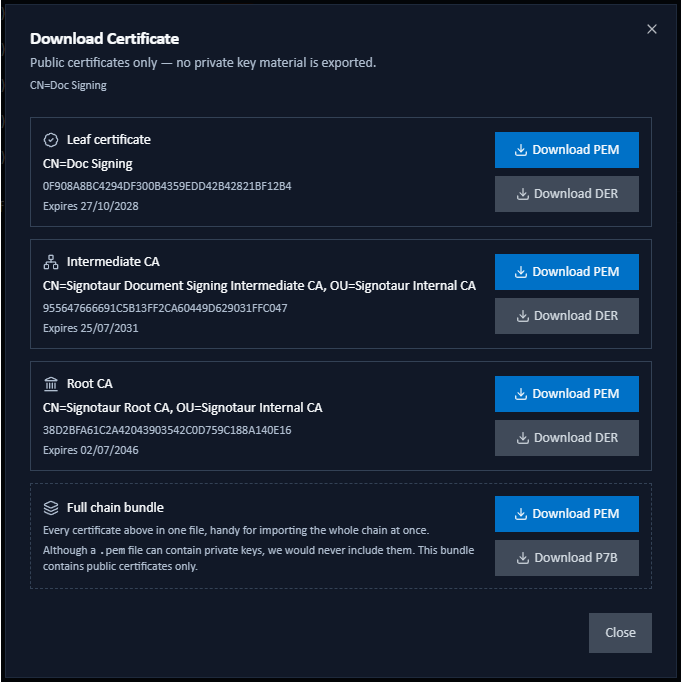
- The downloaded file contains the public certificate only; no private key material is ever exported.
- Use Download DER for Windows certificate-import dialogs and package registries such as nuget.org for publisher-key registration. Use Download PEM for text-friendly tools, OpenSSL pipelines, and Linux trust stores. Both files contain the same public certificate; the difference is the encoding.
- When the dialog lists more than one certificate, a Full chain bundle card at the end offers the whole chain in a single file. Download PEM writes every certificate one after another as Base64 text (
.pem); Download P7B writes them as a PKCS#7 certificate set (.p7b), which Windows imports in one step. Both hold public certificates only. - You can download only the certificates you have access to. This is the same access that governs the listed entries.
- If the dialog reports that the certificate couldn't be loaded (for example, a hardware token is disconnected, or the file backing the certificate has moved) it shows guidance on what to try next. If the problem persists, contact an administrator so the certificate can be re-registered.