API Key Lifecycle
This guide covers the lifecycle of API keys in Signotaur: creation, distribution, rotation, and revocation. For CLI workflows, see API Key Management.
API Key Roles
Signotaur supports two API key roles:
- Standard: Can sign files using certificates the user has been granted access to.
- ApiKeyRotator: Can rotate API keys (create new keys with overlapping validity). Useful for dedicated key management systems or security teams.
Creating API Keys
Users create their own API keys via Profile → API Keys — see User Profile - API Keys for details.
Recommendations:
- Use descriptive names that indicate purpose, environment, and system (e.g., "Production CI/CD - Jenkins").
- Set expiration according to your rotation policy (see Rotation section)
Revoking API Keys
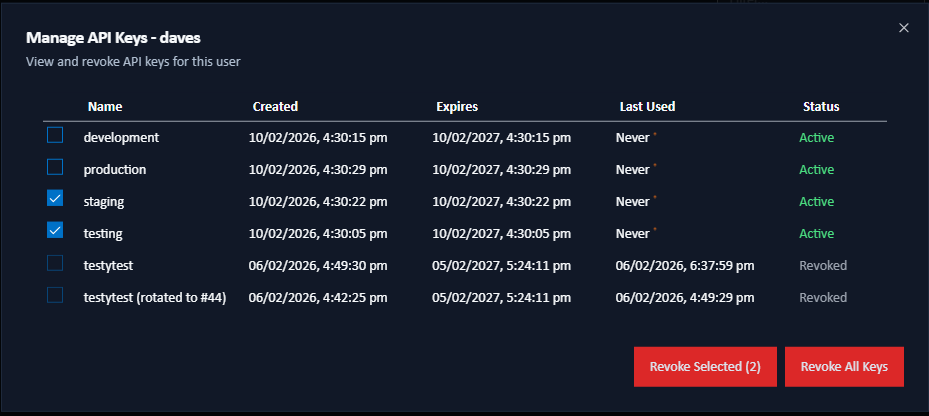
Administrators can view and revoke existing keys for any user via Admin → Users → Manage API Keys — see Server Admin - Users.
Securing and Distributing Keys
Do:
- Store keys in a secrets manager or encrypted files with restricted permissions
- Store in environment-specific locations (don't mix prod/dev keys)
- Use
auth set-keyfor secure CLI storage (details)
Do not:
- Commit API keys to version control
- Email or message API keys in plaintext
- Log API keys in build output
- Share keys across multiple environments
- Store keys in plaintext on shared file systems
Distribution workflow:
- Create key in the Web UI
- Transfer securely to the target system (use
auth set-key --from-stdin, upload to secrets manager, or use a secure channel) - Verify the new key works before deactivating old keys
- Document where the key is stored and what it's used for
Using Keys in Production
Recommended patterns:
- Use
--api-key-filefor file-based storage - Use
SIGNOTAUR_API_KEYfor CI/CD pipelines - Use separate keys per environment (production, staging, development, CI/CD) so a compromise in one doesn't affect the others.
For CLI usage examples, see API Key Management. For pipeline integration patterns, see CI/CD Best Practices.
Key Rotation
Recommended Frequency
| Environment | Frequency |
|---|---|
| Production systems | Every 60–90 days |
| High-security environments | Every 30 days |
| Development/test | Every 90–180 days |
| Suspected compromise | Immediately |
Zero-Downtime Rotation
Signotaur supports zero-downtime rotation through overlapping validity periods:
- Create new key using the
rotate-keycommand - Both keys remain valid during the overlap period (default: 7 days)
- Update all systems to use the new key during the overlap period
- Old key automatically revoked after the overlap period expires
Key Renewal During Rotation
By default, the new key inherits the same expiry date as the old key. Use --renew to extend the new key's lifetime during rotation:
--renew— sets the new key's expiry to 90 days from now (server default)--renew 180d— sets the new key's expiry to 180 days from now- Maximum renewal duration: 365 days
This is useful for CI/CD pipelines where you want rotation to also act as a renewal, keeping keys from marching toward the same fixed expiry date. See the rotate-key command reference for details.
Planning Rotation Windows
| Day | Action |
|---|---|
| Day 0 | Rotate key (7-day overlap begins) |
| Day 1–2 | Update primary build systems |
| Day 3–4 | Update secondary systems |
| Day 5–6 | Verify all systems using new key |
| Day 7 | Old key automatically revoked by server |
For CLI rotation workflows, see API Key Management - Rotating API Keys.
Monitoring and Auditing
Key Status
The Web UI shows key usage information for each key:
- Last Used: Timestamp of last successful signing operation
- Created: When the key was generated
- Expires: Expiration date
- Status: Enabled / Disabled / Revoked
Revoking Compromised Keys
Immediate Revocation (Admin or User):
- Navigate to the API Keys management page
- Click Revoke next to the key
- Confirm revocation
Automatic Revocation (after rotation):
- Keys rotated with
rotate-keyare automatically revoked after the overlap period - Configurable via
--overlap-daysparameter - Can be disabled with
--no-auto-revokeflag
Revocation is permanent and cannot be undone. Create a new key if needed.
Audit Trail
Signotaur maintains an audit trail of API key operations:
- Key creation events
- Last usage timestamps
- Rotation history (which key was rotated from which)
- Revocation events
- Failed authentication attempts
Rotation history in the Web UI shows the original key ID, rotation timestamp, and automatic revocation schedule.
Security Best Practices
- Use descriptive names — make keys easy to identify and audit
- Set appropriate expiration — based on environment and rotation policy
- Rotate regularly — follow recommended frequency for your environment
- Monitor usage — review "Last Used" timestamps regularly
- Audit active keys — revoke unused ones
- Limit ApiKeyRotator role — grant only to dedicated key management systems
- Prefer user-specific keys — avoid shared keys; use separate keys per environment
What to Do If Keys Are Compromised
- Immediately revoke the compromised key via Web UI
- Create new key with a different name
- Update all systems using the compromised key
- Review audit logs to identify unauthorized usage
- Investigate how the key was compromised
- Update procedures to prevent future compromises
- Consider rotating other keys as a precaution
Troubleshooting
Key Not Working
Problem: Authentication failures when using API key
Checklist:
- Check if key has expired (view in Web UI)
- Check if key has been revoked (view in Web UI)
- Check if key is disabled (view in Web UI)
- Verify correct key file is being used
- Check for whitespace or formatting issues in key file
- Verify server URL is correct
Authorization Errors
Problem: "Access denied" or "Certificate not found" errors
Checklist:
- Verify user has access to the certificate being requested
- Check certificate is enabled in Signotaur
- Verify certificate hasn't expired
- Check if user account is enabled
Rotation Issues
Problem: Unable to rotate key
Checklist:
- Verify API key has ApiKeyRotator role OR is rotating its own key
- Check current key hasn't expired
- Verify server is reachable
- Check overlap period doesn't exceed 30 days (maximum)
Problem: Old key still working after overlap period
Solution: The server background service runs hourly to revoke expired rotated keys. Wait up to 1 hour after the overlap period expires, or manually revoke the old key via Web UI.
See Also
- API Key Management - Technical CLI workflows for securing, using, and rotating API keys
- Server Admin - Users - Managing API keys via Web UI (admin)
- User Profile - API Keys - Managing your own API keys via Web UI
- rotate-key Command - CLI command reference for key rotation
- auth set-key Command - CLI command reference for storing keys