CA Maintenance
Two dialogs maintain the Internal CA hierarchy: one adds or reissues an Intermediate CA, the other issues, recreates or regenerates the Root CA. This page describes both in full.
They are reached from two places, and behave identically from either:
- the chain rows on the Certificates tab, both in the expanded chain beneath an end-entity certificate and in the Certificate authorities view;
- the Root CA and Intermediate CAs sub-tabs of the Internal CA settings, which also carry the settings these dialogs pre-fill from.
The chain rows offer Reissue Intermediate CA and Regenerate Root CA. The settings sub-tabs additionally offer Add Intermediate, and Issue Root CA… or Recreate Root CA… depending on the Root's state.
Every action here is unavailable when the Internal CA is disabled, the Root CA key is not accessible, or Offline root mode is on without the Root present. The disabled button's tooltip says which applies.
The Intermediate CA Dialog
One dialog serves both jobs, titled Add Intermediate CA or Reissue Intermediate CA.
Unlike the Root, an intermediate is cheap to replace. Clients that already trust the Root automatically trust a new intermediate, because it still chains to that Root, so no client-side change is ever needed.
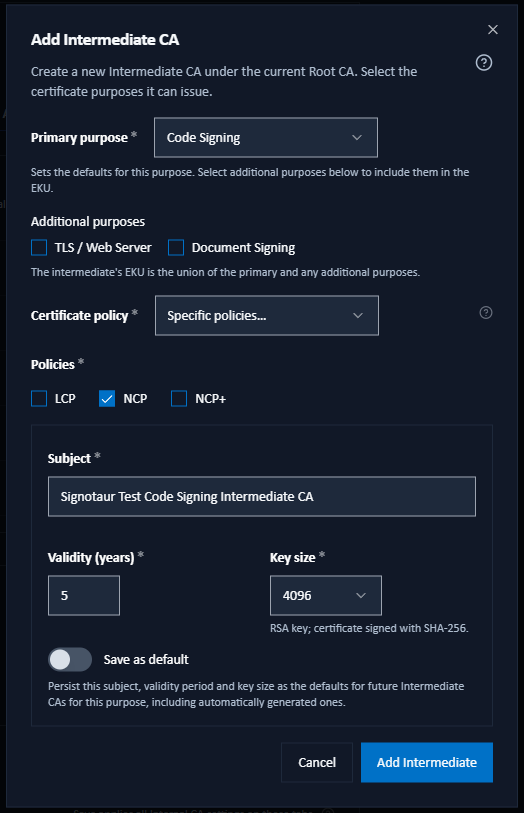
Adding an Intermediate
Choose the Primary purpose: All purposes, Code Signing, Document Signing or TLS / Web Server. This also seeds a suggested subject.
For a scoped purpose, tick any Additional purposes. The intermediate's EKU is the union of the primary and the additional purposes.
For All purposes, choose the All-purpose EKU:
- Any purpose (
2.5.29.37.0), the recommended option. New purposes can be added later without creating a new Intermediate CA. - Only known purposes, which lists the TLS, Code Signing and Document Signing usages explicitly.
- Any purpose (
Choose the Certificate policy this CA states:
- Derived from purposes (the default) resolves it from the policies configured for the purposes this CA can issue, exactly as its EKU is derived. The dialog shows what that resolves to before you commit.
- No policy states nothing, even where policies are configured. This is the only option that can make policy validation fail: a validator that expects a CA policy marker may reject the CA, where Any policy would pass.
- Any policy marks the CA as issuing under any policy.
- Specific policies… lets you tick the exact profiles to assert.
The control is hidden for a TLS-only intermediate, which never states a policy. See Certificate Policy.
Check the Settings: Subject, Validity (years) (1 to 30) and Key size (2048, 3072 or 4096). There is nothing to switch on first: the fields are pre-filled from the defaults for the purpose you chose and are editable straight away. Changing the Primary purpose re-seeds them from that purpose's defaults, but only where you have not edited them yourself, so a value you have typed over is kept. Once a value differs from its pre-filled baseline, a Save as default switch appears, which persists your values as the defaults for future Intermediate CAs, including automatically generated ones.
Click Add Intermediate to create it.
Subject Checks
Two checks run on the subject as you type:
- If another intermediate already has the same common name, a warning appears naming when that CA expires. It does not block. Certificates sharing a subject are treated as one CA holding several keys, and some validators then pick the wrong one, so either edit the subject to create a separate CA or reissue the existing one instead.
- If the subject matches the Root CA's common name, the dialog refuses it and the Add Intermediate button stays disabled. Sharing the Root's subject would make the certificate assert that it is the Root. The server enforces the same rule, so the REST API and the
configurecommand are bound by it too.
The duplicate-subject warning applies only when adding, because reissuing deliberately preserves the existing subject. The Root-subject rule applies wherever a subject is actually being set, including a reissue that uses custom or default settings.
Reissuing an Intermediate
Reissue… opens the same dialog in Reissue Intermediate CA mode. A new Intermediate CA is issued by the current Root, and the old one is kept for audit.
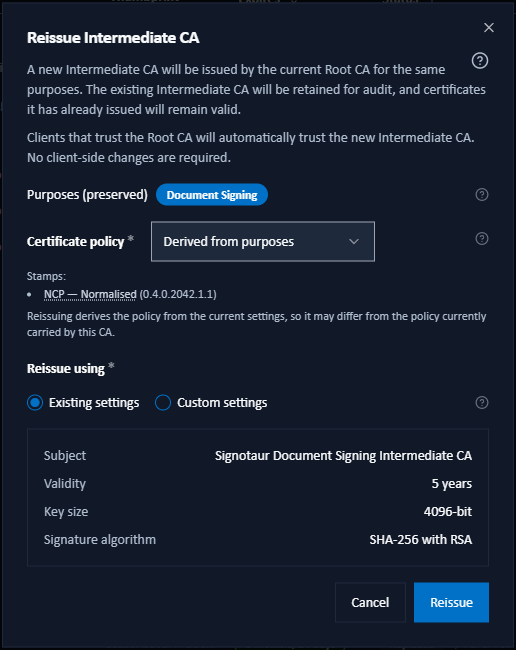
- The purposes are preserved and cannot be changed. Narrowing them could break end-entity certificates the CA has already issued. To use a different set of purposes, add a new intermediate instead.
- Reissuing creates a new key. Certificates already issued stay valid and keep chaining through the previous intermediate until it expires, but any certificate you want on the new chain must be reissued. If the intermediate signs the served web certificate, that certificate is reissued automatically.
- Reissue using offers Existing settings (keep the current subject, validity and key size), Default settings, or Custom settings. This differs from Add Intermediate, which simply pre-fills editable fields: reissuing asks which set to start from, because keeping the existing values is a distinct and common intent there. Default settings is hidden when it would be identical to Existing settings.
- The certificate-policy control is available here too. With Derived from purposes, the policy is resolved again from today's settings, so it can differ from the policy the CA carries now.
The Root CA Dialog
One dialog serves all three Root jobs. Which one is offered depends on the Root's current state, and only ever one at a time.
| State | Action offered | What it does |
|---|---|---|
| No Root exists yet | Issue Root CA… | Generates the Root immediately. No type-to-confirm, because nothing is being replaced. |
| A Root record exists but its key file is missing | Recreate Root CA… | Starts a fresh hierarchy. The panel shows a Key file missing warning badge. |
| The Root is healthy | Regenerate Root… | Archives the current Root and all Intermediate CAs, then generates a new hierarchy immediately. |
Issuing the First Root
Issue Root CA… appears only when no Root exists. The dialog lets you set the subject, validity and key size. The Root is created straight away, with no service restart.
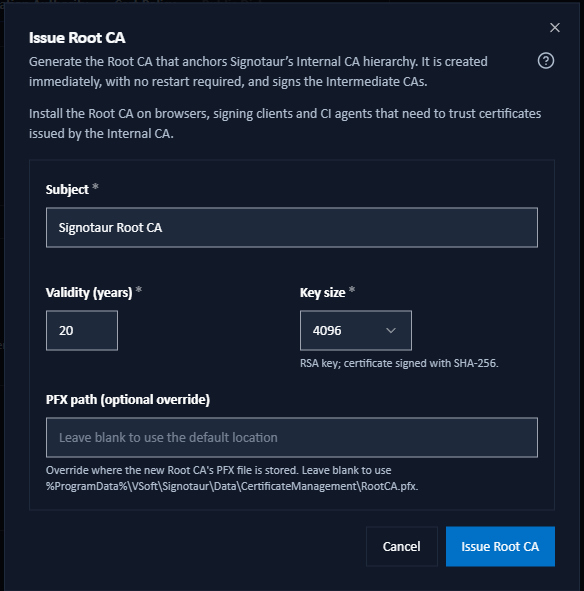
Install the new Root on clients (browsers, signing clients, CI agents) so they trust certificates issued by the Internal CA.
The Root's subject cannot be changed afterwards without replacing the whole hierarchy, so it is worth choosing deliberately rather than accepting the default.
Recovering a Missing Key File
If the Root's private-key file has gone missing from disk, the Root cannot issue anything and cannot be regenerated normally. The panel says Key file missing and offers Recreate Root CA….
Look for RootCA.pfx and its matching .pwd file in the backups\cert-rollback\certs folder and restore them. Recreating starts an entirely fresh hierarchy, so every certificate issued under the old Root stops being trusted until the new Root is installed on clients. Restoring the file avoids all of that.
Regenerating the Root
Regenerate Root… rebuilds the hierarchy from scratch: a new Root and a new set of Intermediate CAs.
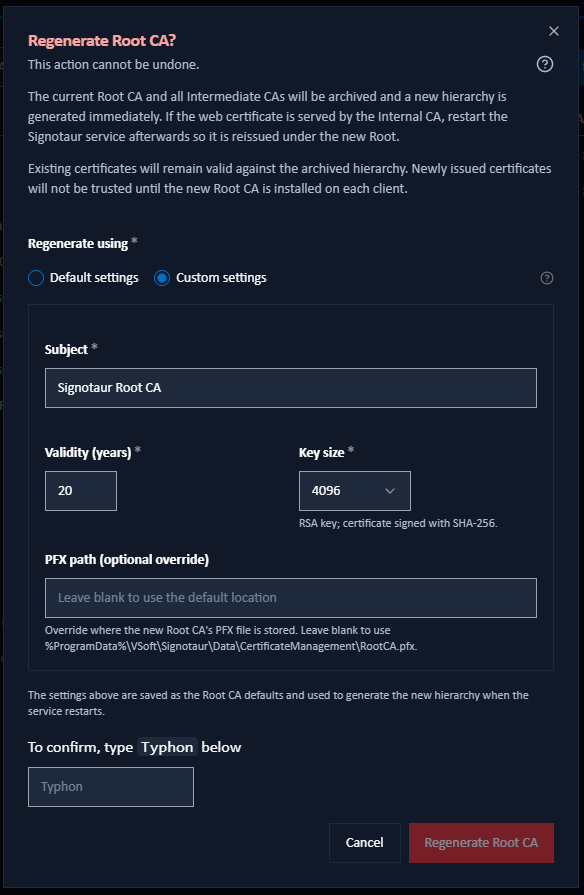
Regenerating cannot be undone. Every certificate issued by the Internal CA chains to the old Root. Certificates already issued remain valid against the archived hierarchy, but newly issued certificates will not be trusted until the new Root is installed on every client. The current Root and Intermediate CAs are archived and a new hierarchy is generated immediately; if the web certificate is served by the Internal CA, restart the Signotaur service afterwards so it is reissued under the new Root.
The revocation service for the archived hierarchy also changes. Immediately before archiving it, Signotaur publishes a final revocation list for the outgoing Root and Intermediate CAs. This list never expires, allowing certificates issued by those CAs to remain verifiable for the rest of their validity periods.
It is also the last revocation list they can publish. Regeneration archives their private keys, so certificates issued under the old hierarchy cannot be revoked afterwards. To distrust all certificates from that hierarchy, remove its archived Root from your clients’ trust stores.
Because it is destructive, the Regenerate Root CA? dialog requires you to type a confirmation word shown in the dialog. The word is chosen at random each time, so it cannot be typed from memory without reading the dialog first.
After regenerating, distribute the new Root certificate to every client; see Trust Distribution.
Choosing the New Root's Settings
Issue Root CA offers no choice, because there is no existing Root to take values from. Its Subject, Validity (years) and Key size fields are pre-filled from the configured Root CA defaults and are editable straight away, so there is nothing to switch on first. Edit them and your values are saved as the new defaults; leave them alone and the stored defaults are untouched.
Recreate and Regenerate ask where the new Root's subject, validity and key size come from:
- Existing settings: reuse the current Root's values. Offered only when a Root record exists.
- Default settings: use the configured Root CA defaults. Hidden when it would be identical to Existing settings.
- Custom settings: enter the subject, validity and key size yourself.
With Existing settings or Custom settings the values are also saved as the Root CA defaults, and the dialog says so beneath the fields. Default settings leaves the stored defaults unchanged.