Certificates
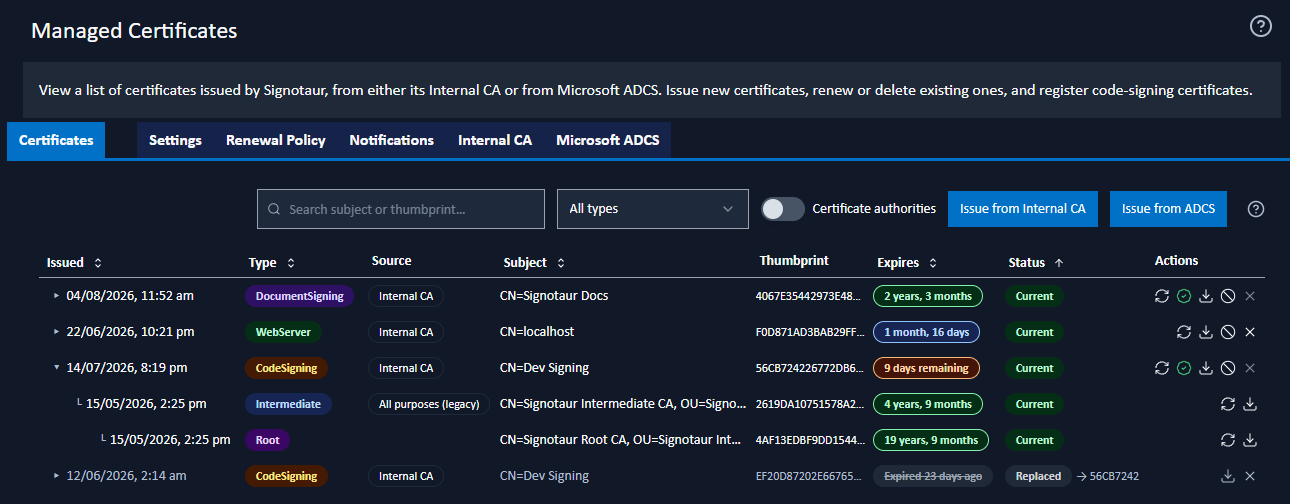
The Certificates tab of the Managed Certificates page lists every certificate Signotaur has issued and is the place to issue new certificates, renew existing ones, revoke them, and register signing certificates for use.
The whole Managed Certificates page is available only with an Enterprise licence. See Editions & Licensing.
The dialogs this tab opens have their own pages:
Toolbar
- Search: filter the table by certificate subject or thumbprint.
- Type filter: show all certificate types, or just Web Server, Code Signing, or Document Signing certificates.
- Certificate authorities: switch the table to a CA-only view, listing each Root with its Intermediate CAs nested beneath it. The search box and type filter still apply, narrowing the intermediates to those eligible for the selected purpose.
- Issue from Internal CA: open the Issue from Internal CA dialog. Disabled when the Internal CA is disabled or incompletely configured.
- Issue from ADCS: open the Issue from ADCS dialog. Disabled when ADCS is disabled or incompletely configured.
Certificate Table
The table lists end-entity certificates (web, code-signing and document-signing). The CA certificates that signed them are shown as expandable chain rows.
| Column | Description |
|---|---|
| Issued | When the certificate was issued. Click the row's arrow (▸) to expand its signing chain. |
| Type | A colour-coded badge: Root, Intermediate, WebServer, CodeSigning, or DocumentSigning. |
| Source | For an end-entity certificate, where it came from: Internal CA or ADCS. Hovering explains what that source is. On an expanded Intermediate CA row this column carries the intermediate's purpose badges instead, and for a Root it is empty. |
| Subject | The certificate's subject distinguished name. |
| Thumbprint | The SHA-1 thumbprint, truncated to its first 16 characters; hover to see the full value. |
| Expires | A badge showing the time remaining, colour-coded by how close expiry is; see Expiry Badges below. |
| Status | Current, Replaced, or Revoked; see Certificate Status. |
| Actions | The operations available for the certificate; see Row Actions. |
Viewing the CA Hierarchy
End-entity certificates with a recorded signing chain have an expand arrow in the Issued column. Expanding a row shows the Intermediate CA and Root CA that signed the certificate as indented chain rows, so the full path from certificate to trust anchor is visible in place.
Expiry Badges
The Expires column shows how long the certificate has left rather than the date itself, humanised up to years, with the exact date in the tooltip.
| Time to expiry | Badge |
|---|---|
| More than 60 days | Green |
| 22 to 60 days | Blue |
| 11 to 21 days | Amber |
| 5 to 10 days | Orange |
| 4 days or fewer | Red |
| Already expired | Grey and struck through, showing how long ago it expired |
In a narrow column the label shortens rather than wrapping. It first drops "remaining", then abbreviates the units to a form such as 2y 2mo. The tooltip always carries the full text.
Certificate Status
- Current: the certificate is in use.
- Replaced: the certificate has been renewed; a newer certificate has taken its place. A → link points to the replacement; hover it to highlight the replacement row, or click it (for CA certificates) to expand the chain containing it. Replaced certificates are removed automatically once the retention period elapses; hover the status badge to see the countdown.
- Revoked: the certificate has been revoked.
A row that is still shown as Replaced may also carry a second Revoked badge. That means a revocation has been published for it even though it is not the current certificate, which happens when a predecessor is revoked automatically on being superseded. Hover the badge for an explanation.
Row Actions
The actions available on a row depend on the certificate's type and status:
- Renew: reissue the certificate, preserving its identity. Opens the Renew Certificate dialog. Available for current end-entity certificates; disabled if the issuing source is disabled or misconfigured.
- Register: register a signing certificate so it can be assigned to users and used for signing. Available for current, unregistered code-signing and document-signing certificates.
- Registered: a non-interactive indicator showing that a signing certificate is already registered.
- Download: download the certificate's public key. Available on every row (root, intermediate, and end-entity) and opens the Download Certificate dialog.
- Revoke: publish the certificate's serial number as revoked through the Validation Authority. Available only for current, Internal-CA-issued certificates; see Revoking a Certificate. ADCS and externally-issued certificates are not offered this action, as they are revoked by their own issuing CA.
- Delete: remove the certificate record and its key file. Disabled when the certificate cannot be safely deleted (for example, while it is the active web certificate or a registered signing certificate); hover the disabled button for the reason.
On an expanded chain row, the Intermediate and Root CA certificates of the Internal CA offer Reissue Intermediate CA and Regenerate Root CA; see CA Maintenance.
Downloading the Public Certificate
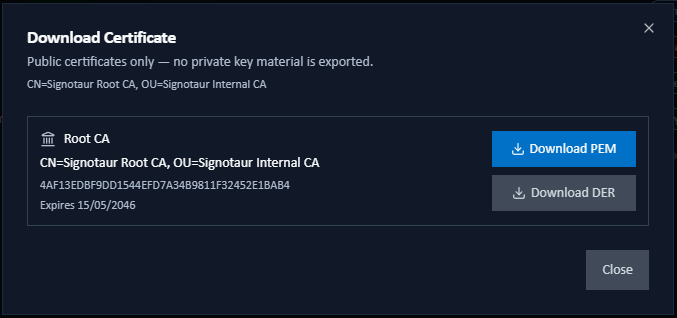
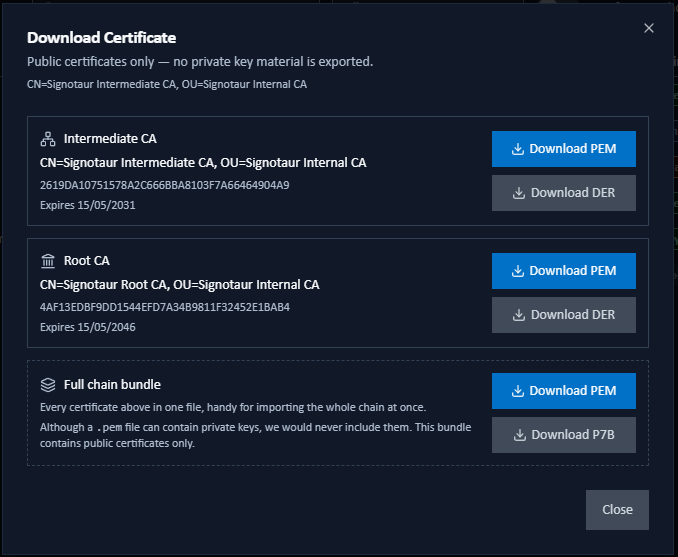
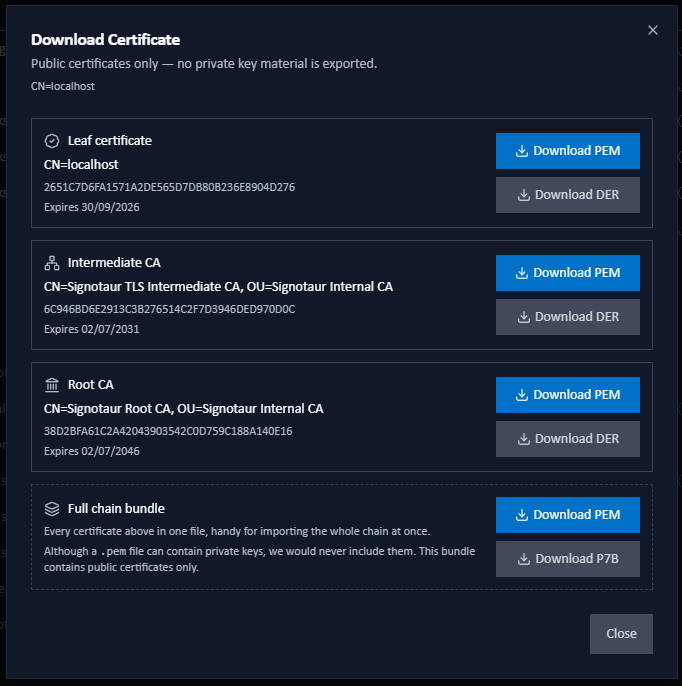
 The Download action opens the Download Certificate dialog, listing every chain element the user might need. The contents depend on which row was clicked: the dialog shows the selected certificate plus every certificate above it in the chain (up to the root), but nothing below it. Every element appears as its own card with subject, thumbprint, expiry, and two download buttons: Download PEM (Base64 text, saved as
 .crt) and Download DER (binary, saved as .cer).
Root row: the dialog shows just the root certificate.
Intermediate row: the dialog shows that intermediate, any further-up intermediates, and the root.
End-entity row (Code Signing / Web Server): the dialog shows the full chain: the end-entity certificate, its intermediates, and the root.
The downloaded file contains the public certificate only; no private key material is ever exported. Use Download DER for Windows certificate-import dialogs and package registries such as nuget.org for publisher-key registration. Use Download PEM for text-friendly tools, OpenSSL pipelines, and Linux trust stores. Both files contain the same public certificate; the difference is the encoding. For platform-specific guidance on installing a root certificate as a trust anchor, see Trust Distribution.
When the dialog lists more than one certificate, a Full chain bundle card at the end offers the whole chain in a single file. Download PEM writes every certificate one after another as Base64 text (.pem). Download P7B writes them as a PKCS#7 certificate set (.p7b), which Windows imports in one step. Both hold public certificates only.
Issuing a Certificate
Two toolbar buttons issue new certificates, each with its own dialog and its own page:
- Issue from Internal CA: issue from Signotaur's own certificate authority. This is the route that offers certificate policies, identity attestation and the strict-EKU option, and it can create the CA hierarchy as it goes.
- Issue from ADCS: issue from Active Directory Certificate Services against a template you name. The template governs validity, extended key usage and, often, the subject.
Both dialogs are pre-filled from their issuer's configured defaults, and both end with Issue certificate.
CA Maintenance
The chain rows of Internal CA certificates carry Reissue Intermediate CA and Regenerate Root CA, so a CA can be maintained without leaving the certificate you were looking at. Both are covered on CA Maintenance.