Issue from Internal CA
Issue from Internal CA, on the Certificates tab of the Managed Certificates page, opens a dialog for issuing a certificate signed by the Internal CA. Above the fields it shows a read-only preview of the signing chain: the Intermediate and Root that will sign the certificate.
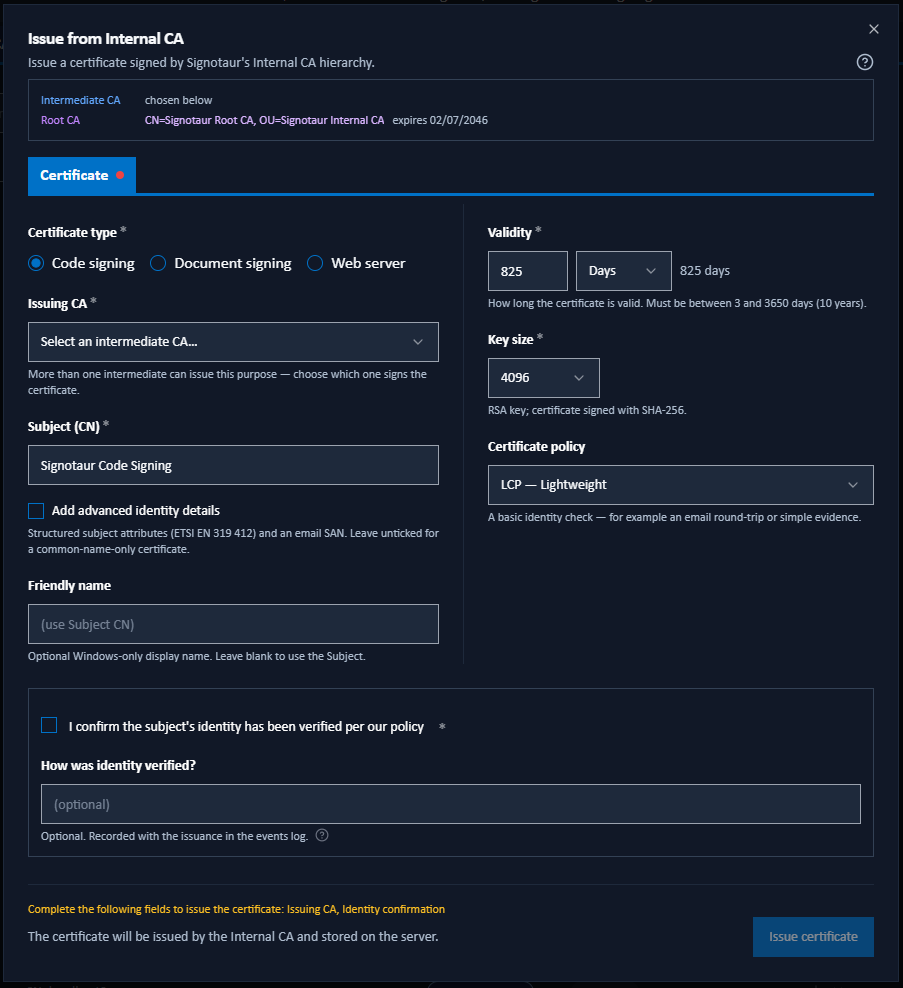
The dialog opens on the Certificate tab, which holds everything needed for an ordinary issuance. A second tab holds the optional subject identity, and appears only when you tick a checkbox under the Subject (CN) field: Add advanced identity details for code-signing and document-signing certificates, or Add organisation details for a web-server certificate. The tab is then called Advanced identity or Organisation to match.
Untick the box and the tab is hidden again. Its fields then take no part in validation, and nothing from them is submitted. The values you typed are kept, so ticking the box again brings them back.
A tab shows a solid red dot when it holds something that has to be put right first, and names those fields in its tooltip. A field needing attention marks its own tab rather than switching you to it, and a single Issue certificate button covers both tabs, so either can be the reason it is disabled.
Fields are pre-filled from the Internal CA issuance defaults. Each certificate type keeps its own values: change the type and the fields re-seed from that type's defaults, and change back again and your earlier edits return. Person details, the email address and the strict-EKU option have no per-type default, so they carry across a type change untouched.
The checkbox ticks itself when the chosen type already configures an identity, so a configured organisation or country is never left sitting behind an unticked box and dropped at issuance.
Click Issue certificate to issue.
When Issuing Creates a CA
The Internal CA creates what it needs at the moment you issue, so on a new installation your first certificate can bring the CA hierarchy into being as a side effect. A notice at the top of the dialog tells you what will happen before you commit to it.
| The notice | What it means |
|---|---|
| No notice | An enabled intermediate for this purpose already exists, so nothing is created. |
| A Document Signing intermediate CA will be created to sign this certificate. | The Root CA already exists. Issuing creates one intermediate, and the notice names its subject, validity and key size. An Add Intermediate… button lets you create it yourself instead. Intermediates can be added or replaced later without affecting trust in your Root CA. |
| No Root CA exists yet. | Issuing creates both the Root and an intermediate, and the notice names the subject, validity and key size of each. An Issue Root CA… button lets you set the Root's values yourself first. |
| The Document Signing issuing CA is disabled. | A matching intermediate exists but has been disabled, so nothing is created and nothing replaces it. This is the only one of these notices that blocks issuing: Issue certificate stays disabled until you enable that intermediate or add another. When more than one matching intermediate is disabled the notice reads No enabled Document Signing issuing CA is available. instead. |
The purpose named in each notice follows the certificate type you chose, so it reads Code Signing, Document Signing or TLS / Web Server as appropriate.
The Root's subject cannot be changed afterwards without replacing the whole hierarchy and reinstalling it on every client machine, so it is worth choosing deliberately rather than accepting the default. See Root CA and Intermediate CAs for setting the values first.
The Issue Root CA… and Add Intermediate… buttons open their own dialogs over this one and return to it when they finish, so a part-filled certificate form is not lost.
Certificate Tab
- Certificate type: Code signing, Document signing, or Web server.
- Issuing CA: a required dropdown naming which Intermediate CA signs the certificate. It appears only when more than one enabled intermediate is eligible for the chosen type, because Signotaur will not guess between them. With exactly one, the chain preview above the fields names it instead; with none, the notice covered in When Issuing Creates a CA says what will be created.
- Subject (CN): the certificate's common name.
- Friendly name: an optional Windows display name; the subject is used when left blank.
- Validity: how long the certificate is valid, entered as a number plus a unit (days, weeks, or years). Must resolve to between 3 and 3650 days.
- Key size: the RSA key size: 2048, 3072, or 4096 bits.
- Certificate policy: (signing certificates only, and only when a policy is enabled for that type) the policy this certificate states, pre-filled with the type's configured profile. Change it to state a different profile for this certificate alone. See Certificate Policy.
- Strict EKU (id-kp-documentSigning only): (document signing only) stamps only the modern RFC 9336 document-signing usage instead of the Microsoft, Adobe and RFC set. RFC 9336 is not among the usages Adobe documents as acceptable on a signer's certificate, so Acrobat may refuse a certificate carrying it alone. Leave it off unless you know the verifying software recognises RFC 9336. See Document-Signing Certificates.
- Additional subject alternative names (SANs): (web server only) comma-separated extra DNS names or IP addresses.
localhost, the machine name and FQDN, the configured external hostname, and the subject are always included automatically.
When the certificate type is configured to Record identity verification at issuance, a panel appears below the fields with a required tick box, "I confirm the subject's identity has been verified per our policy", and an optional How was identity verified? note of up to 512 characters. Both are written to the issuance event. Without the tick the Issue action is refused with a validation error, and the refusal itself is recorded.
Advanced Identity Tab (Signing Certificates)
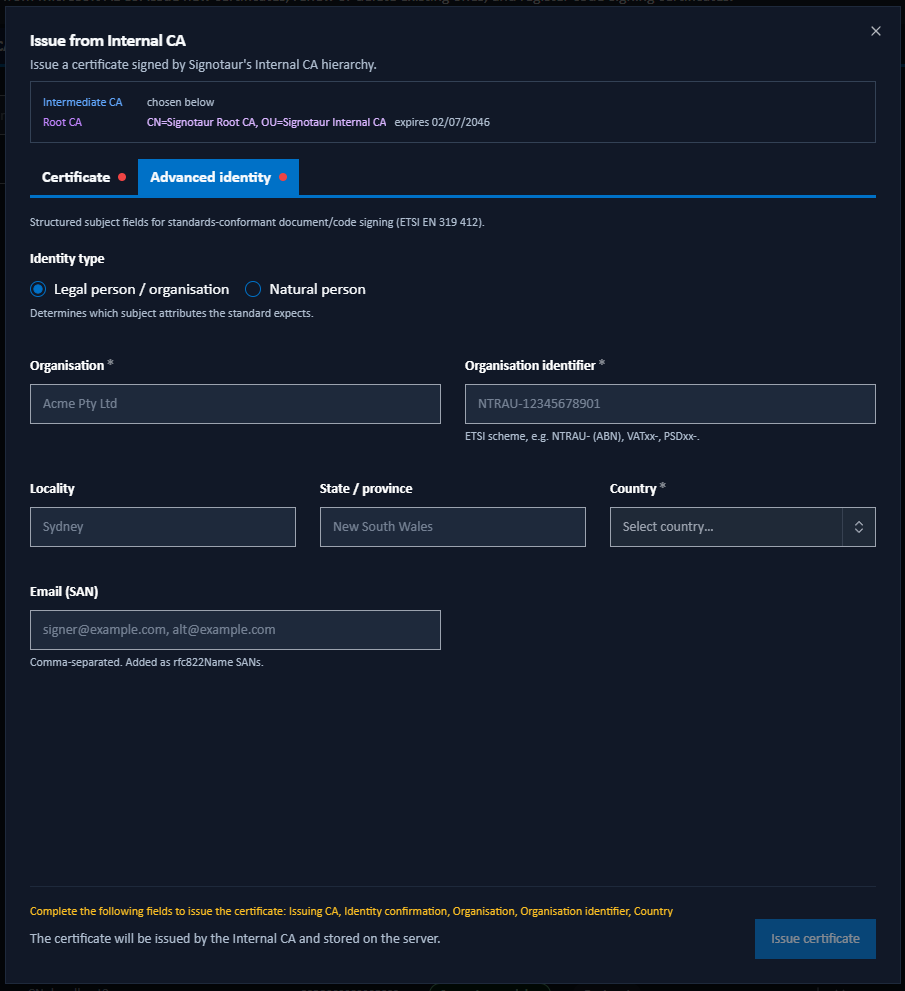
Everything here is optional: leave the checkbox unticked for a common-name-only certificate. Ticking it builds a structured subject following ETSI EN 319 412, which is what a recipient outside your organisation reads to see exactly who signed.
Once the tab is showing, its rules apply, and the fields marked required have to be filled before the certificate can be issued.
Start with Identity type, which decides which fields are required:
- Legal person / organisation: Organisation and Organisation identifier are both required.
- Natural person: enter both Given name and Surname, or a Pseudonym. Title is optional.
Either way, Country becomes required once you enter any structured field.
The remaining fields are:
| Field | Notes |
|---|---|
| Organisation identifier | An ETSI-scheme reference such as VATGB-123456789: a scheme (VAT, NTR or PSD), a two-letter country code, a hyphen, then the reference. A value that does not match this shape gets an advisory note but never blocks issuance: whether the reference is genuine is a question for the official register, and that check belongs to your own registration process. |
| Serial number | The subject's serial number attribute, for example a passport or registration reference. This is not the certificate's own serial number. |
| Locality, State / province, Country | Where the subject is. |
| Email (SAN) | One or more email addresses, comma-separated, added as subject alternative names. |
Organisation Tab (Web Server Certificates)
A web-server certificate can carry an optional organisation-validated (OV) style subject alongside its hostname: Organisation, Locality, State / province and Country. Country becomes required once Organisation is set.
Leave them all blank for a hostname-only certificate. Person and email fields do not apply to a TLS certificate and are not shown. Defaults for these fields are set on the Web Certificate sub-tab of the Internal CA tab.