Root CA
The Root CA sub-tab of the Internal CA tab shows the Root certificate that anchors the whole Internal CA hierarchy, offers the actions that create or replace it, and holds the Offline root mode setting.
The Root signs only Intermediate CAs, never end-entity certificates. It is the certificate you distribute to client machines so they trust everything Signotaur issues. For the concepts, see the Internal CA guide.
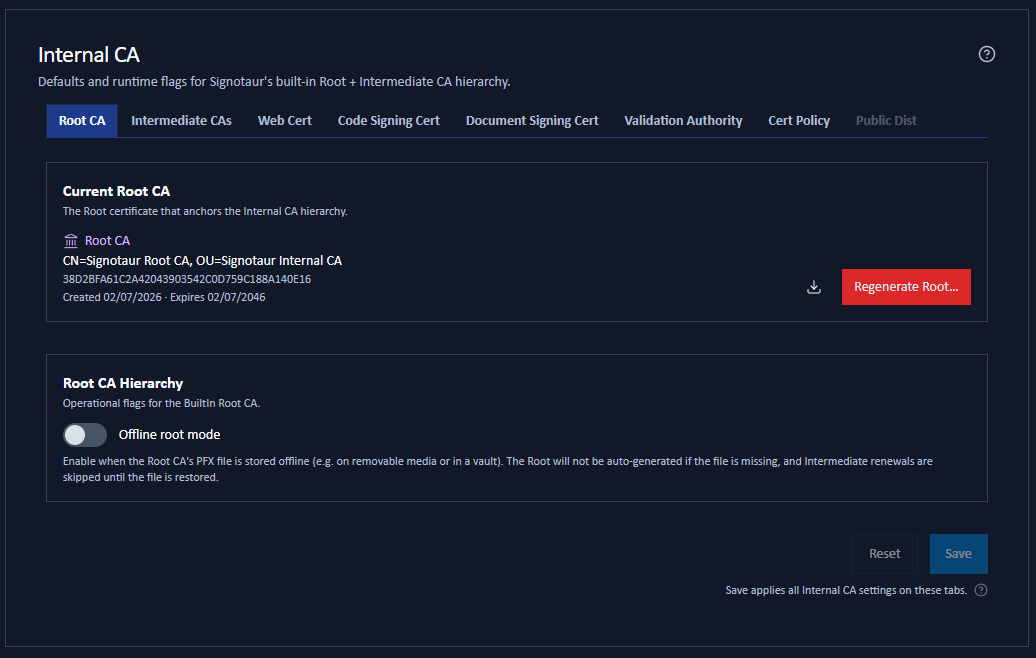
The Current Root CA Panel
The panel shows the Root's subject, thumbprint, creation date and expiry, with a Download button for the certificate and its chain.
There is no setup step. Issuing your first certificate from the Internal CA creates everything it needs in one operation: the Root, and then the purpose-scoped Intermediate CA that signs the certificate, both from the stored defaults.
Issue Root CA… exists so you can create the Root deliberately, with settings of your choosing, rather than letting the defaults decide. It is not a prerequisite.
The one exception is Offline root mode. With it enabled and the Root .pfx absent from disk, nothing is generated and issuance is refused with an actionable error, by design. See Offline Root Mode below.
Choosing the Root's Subject and Key
Auto-generation is convenient, but it uses the stored defaults, which produce a Root named Signotaur Root CA unless you have changed them. Most organisations want their own name on the trust anchor, and the Root's subject cannot be edited afterwards: changing it means regenerating, which is destructive.
The decision is not lost silently: when issuing a certificate would create the Root, the Issue dialog warns first and names the subject, validity and key size it is about to use. See When Issuing Creates a CA.
There are three ways to set the values first.
| When | How |
|---|---|
| At install time | The configure command takes --builtin-root-subject, --builtin-root-validity-years, --builtin-root-key-size, --builtin-root-pfx-path and --builtin-root-offline-mode. These are applied before the server first starts, so the auto-issued web certificate already chains to a Root you named. |
| Before first issuance | Use Issue Root CA… and pick Custom settings. This is the route through the UI. |
| Any time, outside the UI | Edit CertificateManagement:BuiltIn:RootCa in the configuration file. See Configuration File. |
The stored Root defaults are not displayed or editable here. To see them, open Issue Root CA…, whose fields are pre-filled with exactly those values, or Regenerate Root… and pick Default settings. Editing the values in either dialog saves them back as the new defaults.
If the hierarchy has already been generated with values you did not choose, the only way to change the Root's subject is Regenerate Root…, which replaces the whole hierarchy. On a brand-new installation that costs nothing, because no certificates depend on it yet. Once certificates are in use, it is disruptive; see the warning below.
Root CA Actions
Only one action is offered at a time, and which one depends on the Root's current state.
| State | Action offered | What it does |
|---|---|---|
| No Root exists yet | Issue Root CA… | Generates the Root immediately. No type-to-confirm, because nothing is being replaced. |
| A Root record exists but its key file is missing | Recreate Root CA… | Starts a fresh hierarchy. The panel shows a Key file missing warning badge. |
| The Root is healthy | Regenerate Root… | Archives the current Root and all Intermediate CAs, then generates a new hierarchy immediately. |
All three open the same dialog. Issue Root CA… pre-fills the subject, validity and key size from the configured defaults and lets you edit them directly. Recreate and Regenerate instead ask whether to take those values from the existing Root, from the configured defaults, or from values you enter yourself, and both require you to type a confirmation word. See CA Maintenance for the dialog in full, including what to try before recreating a Root whose key file has gone missing.
Regenerating cannot be undone. Certificates already issued remain valid against the archived hierarchy, but newly issued certificates will not be trusted until the new Root CA is installed on every client. If the web certificate is served by the Internal CA, restart the Signotaur service afterwards so it is reissued under the new Root. Afterwards, distribute the new Root to every client; see Trust Distribution.
Offline Root Mode
Offline root mode enables a security model in which the Root's private key is kept off the server entirely, on removable media or in a vault, and brought back only when it is needed.
When it is on:
- The Root is not auto-generated if its
.pfxfile is missing. Signotaur reports an actionable error instead, so a misplaced Root key can never be masked by an unexpected new one. - Intermediate CA renewals are skipped until the file is restored.
- Day-to-day issuance is unaffected, because end-entity certificates are signed by an Intermediate CA, which stays on the server.
To add or reissue an Intermediate CA while Offline root mode is in use, temporarily restore the Root .pfx file, perform the action, then remove it again.
Unlike the Root actions above, this is a saved setting: change it and click Save. See Offline Root Mode for the concept.
Availability
Issuing, recreating and regenerating all require:
- the Internal CA to be enabled on the Settings tab;
- the Root CA key file to be accessible;
- Offline root mode to be off, or the Root file present.
When any of those is not met, the action is disabled and its tooltip explains why.