Certificates
The Certificates tab of the Managed Certificates page lists every certificate Signotaur has issued and is the place to issue new certificates, renew existing ones, and register code-signing certificates for use.
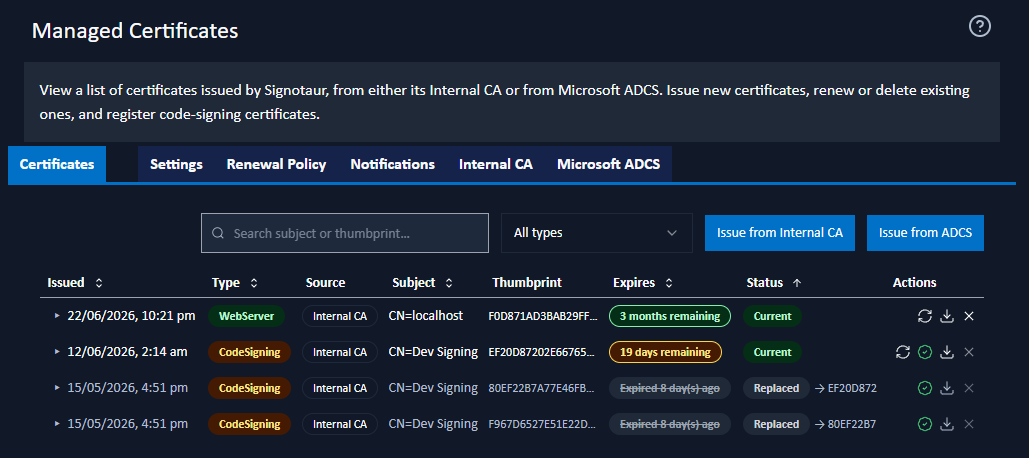
Toolbar
- Search: filter the table by certificate subject or thumbprint.
- Type filter: show all certificate types, or just Web Server or Code Signing certificates.
- Issue from Internal CA: open the Issue from Internal CA dialog. Disabled when the Internal CA is disabled or incompletely configured.
- Issue from ADCS: open the Issue from ADCS dialog. Disabled when ADCS is disabled or incompletely configured.
Certificate Table
The table lists end-entity certificates (web and code-signing). The CA certificates that signed them are shown as expandable chain rows.
| Column | Description |
|---|---|
| Issued | When the certificate was issued. Click the row's arrow (▸) to expand its signing chain. |
| Type | A colour-coded badge: Root, Intermediate, WebServer, or CodeSigning. |
| Source | Where the certificate came from: Managed (Internal CA) or Managed (ADCS). |
| Subject | The certificate's subject distinguished name. |
| Thumbprint | The SHA-1 thumbprint, truncated; hover to see the full value. |
| Expires | An expiry badge, colour-coded by how close expiry is. |
| Status | Current, Replaced, or Revoked; see Certificate Status. |
| Actions | The operations available for the certificate; see Row Actions. |
Viewing the CA Hierarchy
End-entity certificates with a recorded signing chain have an expand arrow in the Issued column. Expanding a row shows the Intermediate CA and Root CA that signed the certificate as indented chain rows, so the full path from certificate to trust anchor is visible in place.
Certificate Status
- Current: the certificate is in use.
- Replaced: the certificate has been renewed; a newer certificate has taken its place. A → link points to the replacement; hover it to highlight the replacement row, or click it (for CA certificates) to expand the chain containing it. Replaced certificates are removed automatically once the retention period elapses; hover the status badge to see the countdown.
- Revoked: the certificate has been revoked.
Row Actions
The actions available on a row depend on the certificate's type and status:
- Renew: reissue the certificate, preserving its identity. Opens the Renew Certificate dialog. Available for current end-entity certificates; disabled if the issuing source is disabled or misconfigured.
- Register: register a code-signing certificate so it can be assigned to users and used for signing. Available for current, unregistered code-signing certificates.
- Registered: a non-interactive indicator showing that a code-signing certificate is already registered.
- Download: download the certificate's public key. Available on every row (root, intermediate, and end-entity) and opens the Download Certificate dialog.
- Delete: remove the certificate record and its key file. Disabled when the certificate cannot be safely deleted (for example, while it is the active web certificate or a registered code-signing certificate); hover the disabled button for the reason.
On an expanded chain row, the current Intermediate and Root CA certificates of the Internal CA offer the Renew Intermediate and Regenerate Root CA actions; see CA Maintenance below.
Downloading the Public Certificate
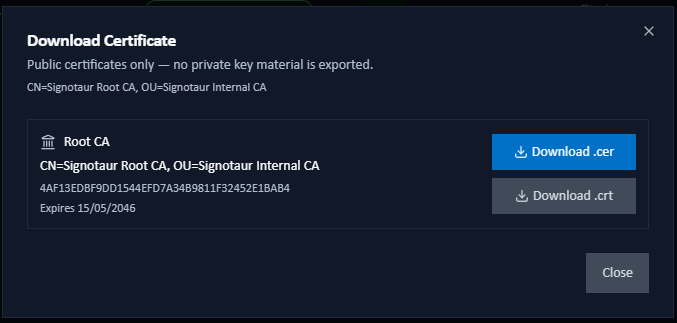
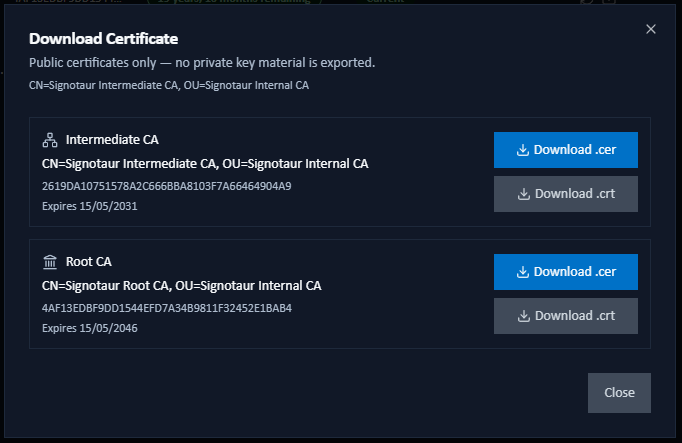
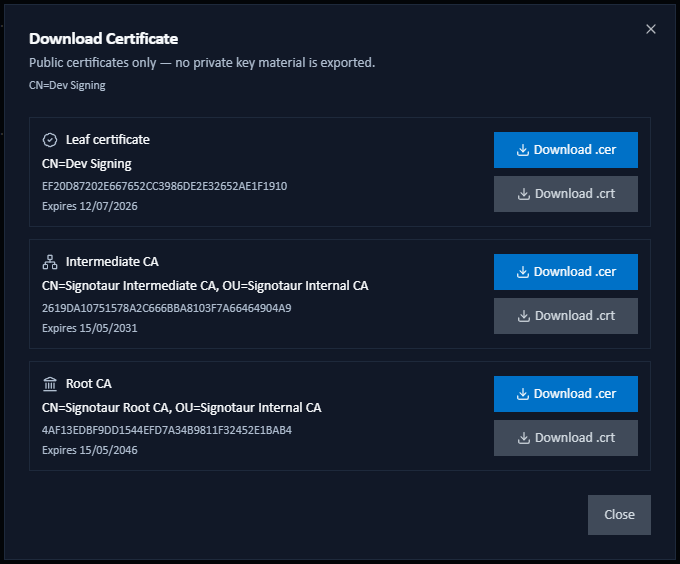
 The Download action opens the Download Certificate dialog, listing every chain element the user might need. The contents depend on which row was clicked: the dialog shows the selected certificate plus every certificate above it in the chain (up to the root), but nothing below it. Every element appears as its own card with subject, thumbprint, expiry, and two download buttons: Download .cer (DER) and Download .crt (PEM).
Root row: the dialog shows just the root certificate.
Intermediate row: the dialog shows that intermediate, any further-up intermediates, and the root.
End-entity row (Code Signing / Web Server): the dialog shows the full chain: the end-entity certificate, its intermediates, and the root.
The downloaded file contains the public certificate only; no private key material is ever exported. Use .cer (binary DER) for Windows certificate-import dialogs and package registries such as nuget.org for publisher-key registration. Use .crt (base64 PEM) for text-friendly tools, OpenSSL pipelines, and Linux trust stores. Both files contain the same public certificate; the difference is the encoding. For platform-specific guidance on installing a root certificate as a trust anchor, see Trust Distribution.
Issuing a Certificate
Issuing from the Internal CA
Issue from Internal CA opens a dialog for issuing a certificate signed by the Internal CA. It shows the signing hierarchy (the Intermediate and Root that will sign the certificate) and the following fields:
- Certificate type: Code signing or Web server.
- Subject (CN): the certificate's common name.
- Friendly name: an optional Windows display name; the subject is used when left blank.
- Validity: how long the certificate is valid, entered as a number plus a unit (days, weeks, or years). Must resolve to between 3 and 3650 days.
- Key size: the RSA key size: 2048, 3072, or 4096 bits.
- Additional subject alternative names (SANs): (web server only) comma-separated extra DNS names or IP addresses.
localhost, the machine name and FQDN, the configured external hostname, and the subject are always included automatically.
Fields are pre-filled from the Internal CA issuance defaults. Click Issue certificate to issue.
Issuing from ADCS
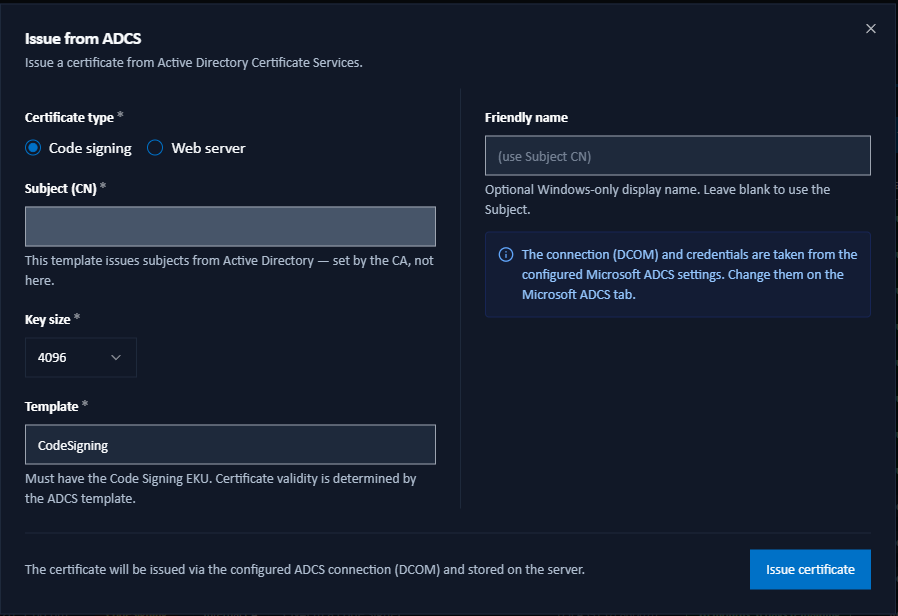
Issue from ADCS opens a dialog for issuing a certificate from Active Directory Certificate Services:
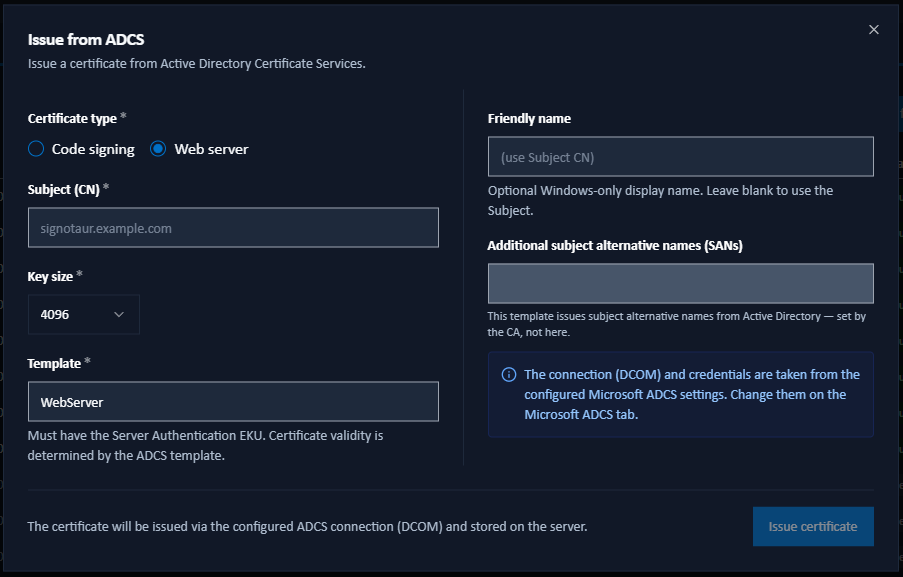
- Certificate type: Code signing or Web server.
- Subject (CN) and Friendly name: as above.
- Key size: the RSA key size.
- Template: the ADCS certificate template to request. The certificate's validity is governed by this template, not by Signotaur.
- Transport: DCOM or CertSrv, with the corresponding CA configuration or Endpoint field.
- Use integrated authentication: (CertSrv only) when off, a Username and Password are requested. DCOM always uses the Signotaur service account.
- Additional subject alternative names (SANs): (web server only) as above.
Fields are pre-filled from the ADCS issuance defaults. Click Issue certificate to issue.
Renewing a Certificate
The Renew action opens the Renew Certificate dialog. Renewal reissues the certificate while preserving its identity; subject, key size, and friendly name are carried across unchanged.
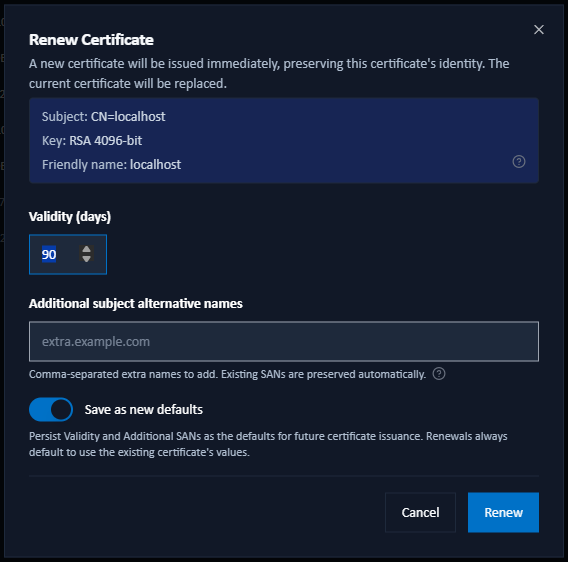
- Validity (days): editable for Internal CA certificates; for ADCS certificates the validity is template-governed and shown read-only.
- Additional subject alternative names: (web certificates only) extra names to add. Existing SANs are always preserved.
- Registration cleanup of replaced certificate: (registered code-signing certificates only) the grace periods after which the replaced certificate is disabled and then unregistered. Pre-filled from the Renewal Policy; changes here apply to this renewal only.
- Save as new defaults: persist the validity and SAN values as the defaults for future issuance.
To change a certificate's subject, key size, or friendly name, issue a new certificate instead of renewing.
CA Maintenance
These actions appear on the expanded chain rows of Internal CA certificates.
Renew Intermediate
Renew Intermediate creates a new Intermediate CA signed by the current Root. The active web certificate is reissued onto the new chain; existing end-entity certificates continue to use the previous Intermediate until they are themselves renewed. Clients that trust the Root require no action.
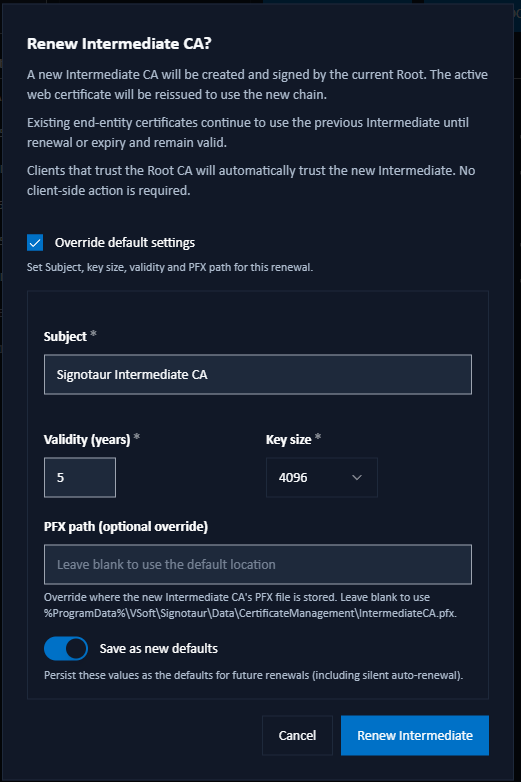
By default the saved Intermediate CA defaults are used. Tick Override default settings to set the subject, validity, key size, and PFX path for this renewal, and optionally Save as new defaults.
The action is unavailable when the Internal CA is disabled, the Root CA key is not accessible, or Offline Root mode is on without the Root present.
Regenerate Root CA
Regenerate Root CA rebuilds the entire hierarchy: a new Root and Intermediate.
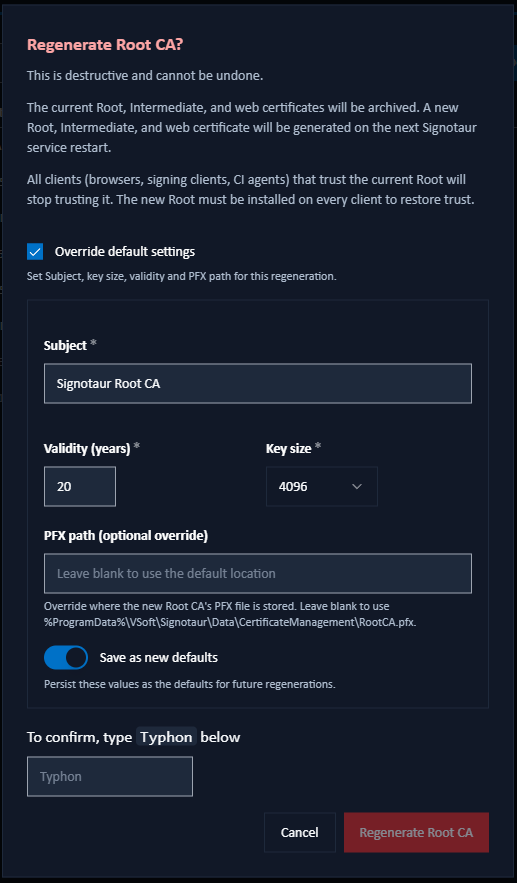
Regenerating the Root is destructive and cannot be undone. Every certificate issued by the Internal CA chains to the old Root. Until the new Root is distributed and trusted, clients will reject the new certificates. The current Root, Intermediate, and web certificates are archived, and the new hierarchy is generated on the next service restart.
Because it is destructive, the dialog requires you to type a confirmation word before the action is enabled. As with Renew Intermediate, you can optionally override the Root defaults for this regeneration. After regenerating, distribute the new Root certificate to all clients; see Trust Distribution.